
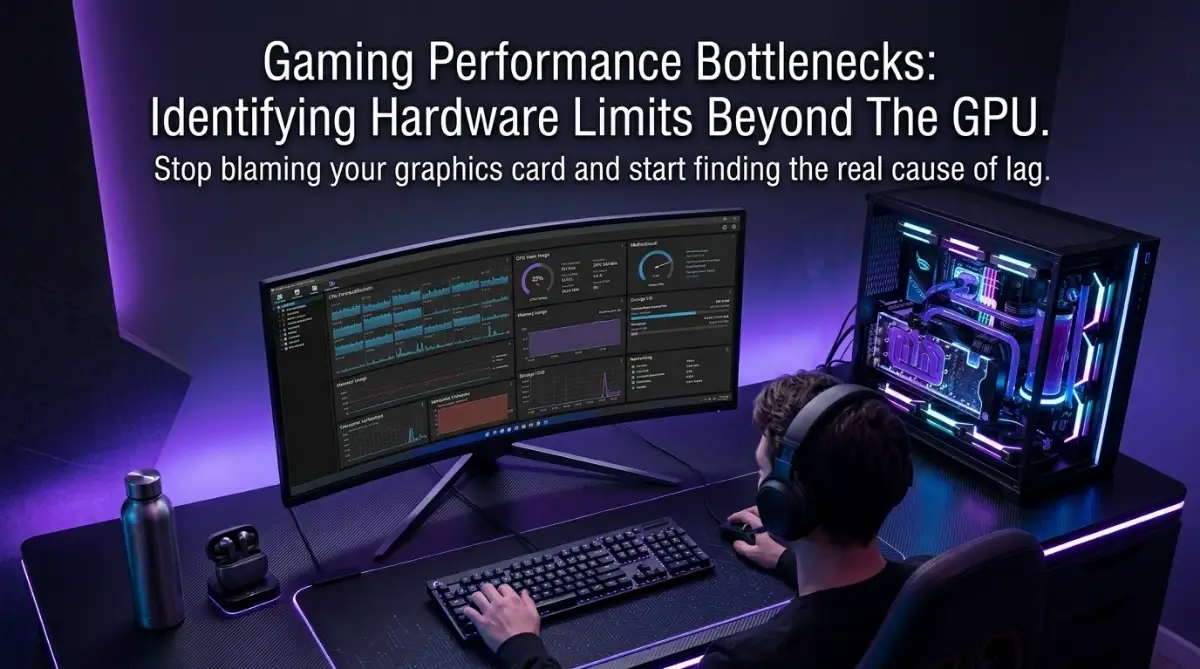
The Moment the Game Stuttered When It Mattered Most
Let’s be honest: spending hundreds on a top-tier graphics card only to watch your game stutter is one of the most frustrating experiences in PC gaming. You assume the hardware will solve everything, but sometimes, the lag just follows you. It isn't always about power; it is often about how your components talk to each other. Let’s stop wasting money on upgrades you don't need and find out where your system is actually holding you back.
I was furious. I had just spent a small fortune on a top-tier graphics card, assuming that was the silver bullet for all my performance woes. I restarted my system, lowered the settings, and even updated my drivers three times. But the stuttering persisted. It wasn't just that one game; it was creeping into everything I played.
I felt betrayed by my own machine. I was staring at my hardware monitor, and I finally noticed that my GPU usage was actually quite low. It was waiting for data that never arrived. That was the day I stopped looking at my graphics card as the problem and started looking at the entire system as a chain.
Have you been there? You are convinced that your frame rates are low because your GPU isn't strong enough. But when you start digging, you realize that a powerful engine can't do much if the fuel lines are clogged. It is a frustrating cycle of spending money on upgrades that don't solve the core issue.
TL;DR: How to Stop PC Stutters
-
Measure First: Don't buy new parts until you identify if the CPU, RAM, or Storage is the real limit.
-
Heat Matters: A hot PC is a slow PC; keep your fans clean and airflow clear.
-
Software Bloat: Your background processes are often the biggest performance thieves.
-
Stability Over Speed: A consistent 60 FPS is always better for your experience than a jerky, high-frame-rate mess.
The Chain Reaction: Understanding How Your PC Talks to Itself
Quick Bottleneck Diagnostic Table
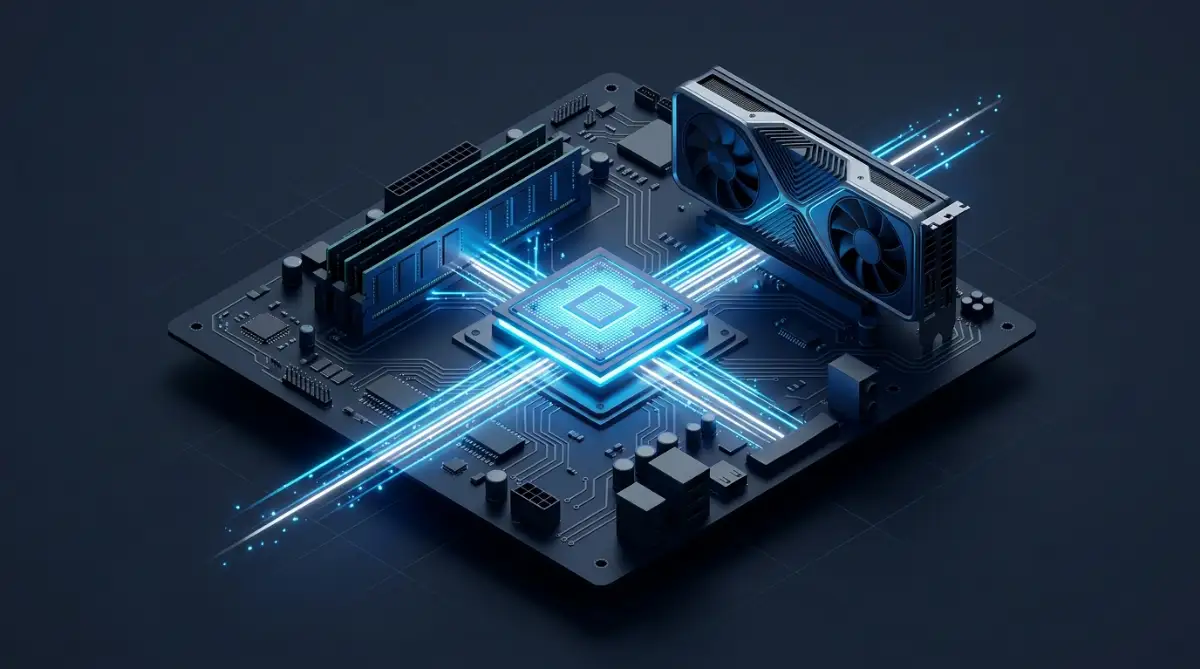 When we talk about gaming, we often treat the GPU like a king. But your computer is a team. If the player passing the ball is slow, the striker can't score. That is how your hardware behaves.
The CPU: The Master Conductor
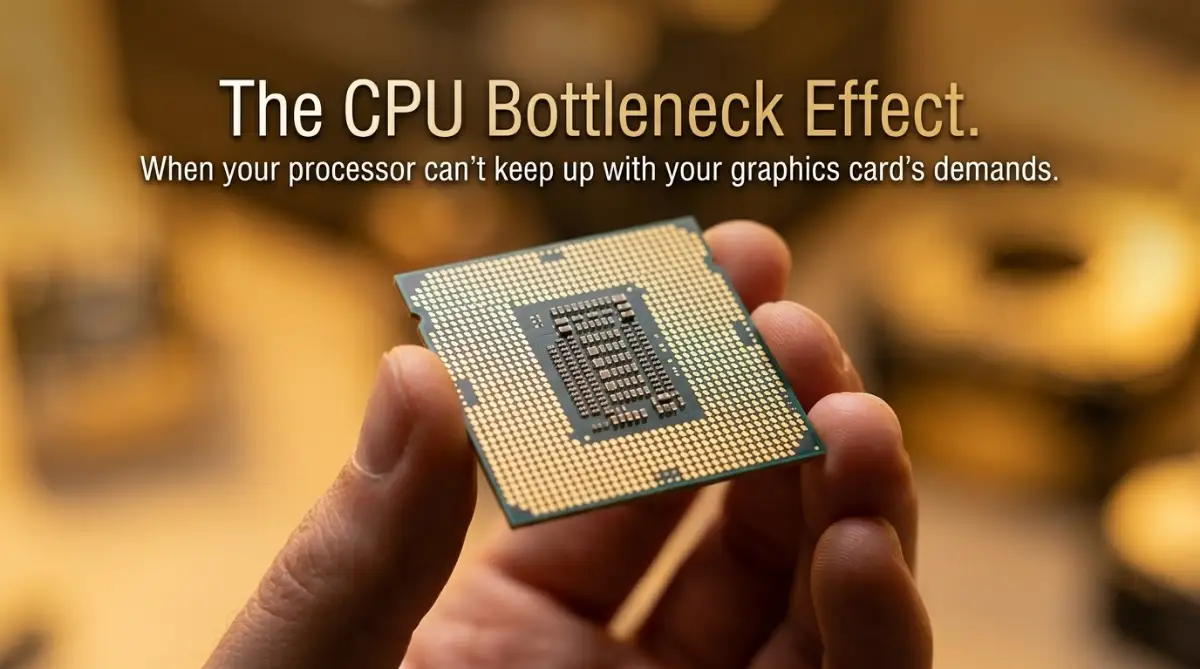
Think of your CPU as the brain that directs the action. Before the GPU can draw a single frame, the CPU must calculate physics, player position, AI behaviors, and network inputs. If the CPU is overwhelmed, it tells the GPU to wait.
This is the classic CPU bottleneck. You might have the most powerful graphics card on the market, but if it is waiting for your CPU to tell it what to do, your frame rates will dip. This often happens in CPU-intensive games like large-scale strategy titles or massive multiplayer games.
The RAM: The Workbench of Your PC
If the CPU is the brain, the RAM is the workbench. This is where the game loads assets—textures, sounds, and map data—so they can be accessed instantly. If you have slow RAM or not enough of it, the CPU has to wait for data to be fetched from your storage drive.
This delay causes massive stuttering. You might see your GPU usage drop significantly because it has no data to render. RAM frequency and latency are the unsung heroes of smooth gameplay. Keeping these efficient is often more effective than overclocking your GPU.
Storage Drives: The Asset Delivery System
Many gamers overlook their storage. Are you running your modern games from an old mechanical hard drive? That is a performance killer. When the game needs to stream a high-resolution texture from the drive to the RAM, a slow drive will cause hitching.
Even an SSD can have bottlenecks if it is nearly full. These drives need "breathing room" to manage data efficiently. Moving your games to a fast, well-maintained drive can be the difference between a constant stutter and a silky-smooth experience.
Thermal Throttling: The Silent Performance Killer
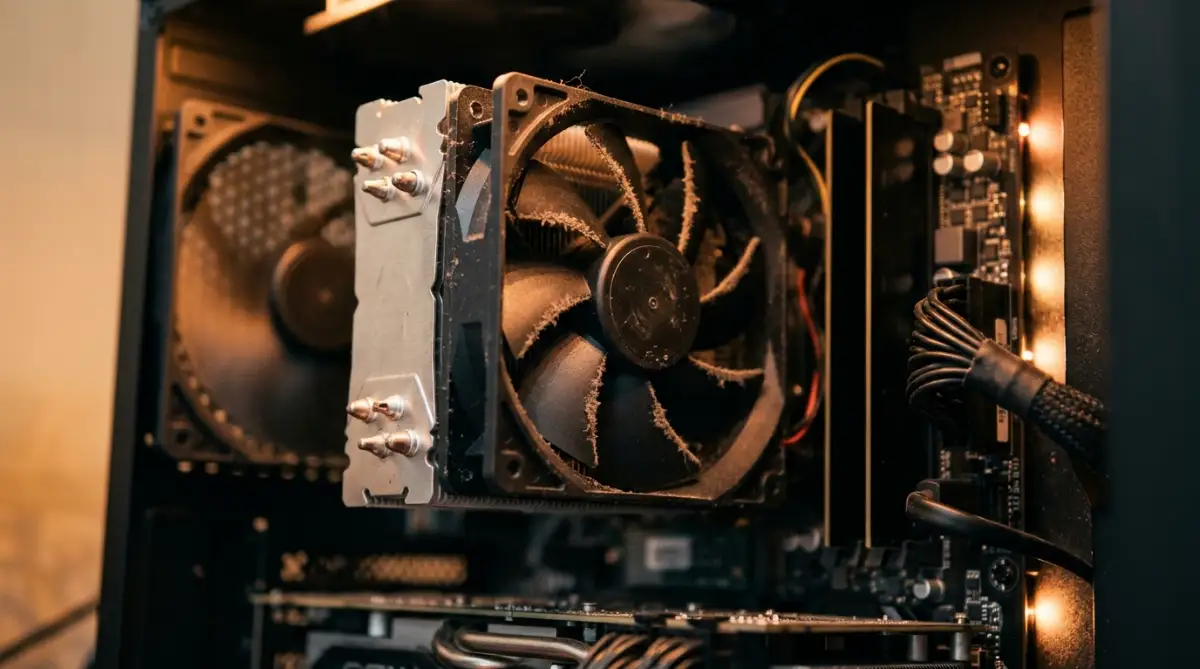 fHeat is the enemy of all electronics. If your CPU or GPU gets too hot, it will automatically lower its speed to prevent damage. This is called thermal throttling. You might start a game at 100 FPS, and twenty minutes later, you are sitting at 40 FPS because your internal temperatures have spiked.
Improving your airflow or re-applying thermal paste isn't about bragging rights; it is about keeping your performance consistent. Most people never check their idle or load temperatures. Ignoring this is like ignoring the check-engine light in your car.
Pro Tip: My "Aha!" Moment with Settings
I spent weeks trying to fix a stutter in a game by buying more RAM. It didn't work. I finally went into my background processes and found an old, forgotten cloud-sync service hogging my CPU cycles every time I opened a game. I disabled it, and my performance jumped by 20 percent. My realization was simple: sometimes the bottleneck isn't hardware you bought; it is software you installed and forgot. Before you spend a dime on new parts, clear your background processes.
Want to see how your PC is actually performing? Watch this video to learn how to track bottlenecks in real-time:
The Hidden Culprits: Software and Drivers
Hardware is only as good as the software managing it. If your components are fighting against bad instructions, the best silicon in the world won't save you.
Driver Conflicts: The Invisible War
Graphics drivers are updated frequently, but what about your chipset drivers? Most users forget these entirely. Your motherboard relies on these drivers to communicate with your CPU,RAM, and storage.
An outdated chipset driver can lead to inconsistent performance. It is a simple fix that is often overlooked. Go to your motherboard manufacturer’s website and ensure you are running the latest version. This creates a stable foundation for everything else.
Windows Background Services
Your operating system is constantly doing things you didn't ask it to do. Windows Update, telemetry services, and indexers can fire up without warning. When they do, they steal CPU time and disk usage.
Using a "Gaming Mode" or simply cleaning up your startup apps can make a massive difference. If your CPU is constantly hitting 100 percent usage while doing nothing, you have an OS bottleneck. Track these down in your task manager.
Benchmarking: How to See the Real Truth
You cannot fix what you cannot measure. You need to look at more than just the "FPS" counter in the corner of your screen. You need to look at individual component utilization.
What Utilization Graphs Actually Tell You
If your GPU is hovering at 60-70 percent usage, you are almost certainly bottlenecked elsewhere. If the GPU were truly maxed out, it should be hitting 95-99 percent. If it's not, it's begging for more data.
Look at your CPU cores. Sometimes a game only uses one or two cores heavily. If that one core is pinned at 100 percent, your GPU will never reach its potential. This is a single-core bottleneck, which is very common in older games.
The RAM Usage Trap
Check your RAM usage while gaming. Is it sitting at 95 percent? You are paging data to your storage drive, which is agonizingly slow. This causes that "hitch" you feel when walking into a new area of a map.
If you are consistently high on RAM, it is time to close background tabs. Modern browsers are notorious for eating memory. If you are a streamer, you are likely hitting this limit faster than the average gamer.
Analyzing Frame Time Consistency
Frame rate is an average, but frame time is the reality. Frame time measures how long each individual frame takes to render. A consistent frame time of 16.6ms results in a perfectly smooth 60 FPS.
If your frame times are jumping all over the place, that is the stutter you feel. This usually points to storage issues or background process interference. Don't chase high FPS if your frame times are wildly inconsistent.
Thermal Management: Keeping the Performance Stable
Even if your hardware is top-tier, heat will eventually ruin your day. If you aren't managing your case airflow, you are leaving performance on the table.
Case Airflow Basics
Is your PC case a hotbox? If your fans are all pushing air in without an exhaust, or if they are blocked by dust, your internal ambient temperature will rise. This forces your CPU and GPU to work harder to stay within safety limits.
A simple cleaning with compressed air can drop your load temperatures by several degrees. It is an easy, cheap way to regain performance stability. Don't ignore the buildup of dust; it acts like an insulator, trapping heat inside your expensive components.
Fan Curves and Custom Profiles
Most motherboards allow you to set custom fan curves. You don't have to let the default settings decide when your fans spin. You can tell your fans to ramp up earlier, keeping your hardware cooler before it ever reaches a dangerous limit.
This might be a bit louder, but it keeps your performance peak steady. For a serious gamer, a little extra fan noise is a small price to pay for a stutter-free experience. Consistency is the goal here, not silence.
The Strategy of Balanced Upgrading
So, when is it time to actually replace a part? It is a question of "minimums."
Identifying the Weakest Link
If you have an amazing GPU and a weak CPU, you are wasting money. The GPU is capable of 144 FPS, but the CPU is limiting you to 60 FPS. Your upgrade path should always be to elevate the "lowest" component first.
Look at your utilization stats over several different games. Is it always the CPU hitting the limit? Upgrade the CPU. Is it the RAM? Upgrade the memory. Don't just upgrade what feels "old." Upgrade what is actually failing to keep up.
Long-Term Planning
When building a PC, try to keep the performance tiers of your parts relatively close. A mid-range GPU is often a better fit for a mid-range CPU than a flagship GPU. This creates a "balanced" system where every part contributes equally to the experience.
Building this way saves you money in the long run. It prevents the need for massive, system-wide overhauls later on. It also teaches you the rhythm of your own hardware, allowing you to tweak settings for maximum efficiency rather than raw power.
Why Software Settings Matter as Much as Hardware
You can often "fix" a bottleneck by changing how the game talks to your hardware. This is the art of optimization.
Resolution and Scaling
If your CPU is the bottleneck, lowering your resolution might actually make things worse or have no effect. This is because lower resolutions put more demand on the CPU. It seems counter-intuit