
The Moment I Almost Lost Everything: A Reality Check
We’ve all had that mini-heart attack moment—sharing your screen and realizing you’re one click away from exposing a private email or file. You don't need to be an IT expert to stay secure, but you do need to stop treating your home workspace like a casual digital playground. Let’s clean up your security habits today so you can work without the constant anxiety of a digital disaster.
That was the day I realized how sloppy my remote-work routine had become. For months, I had been working in pajamas, moving from the kitchen table to the couch, and treating my work laptop like a personal toy. I was saving work files in random folders and leaving my video meeting links wide open.
I thought I was being efficient, but I was actually being reckless. I looked at my desk—which was covered in sticky notes with passwords written on them—and I realized I was one click away from a disaster. It wasn't just about my work; it was about the personal data sitting right next to it.
If you have ever felt that same sinking feeling—that fear that one wrong click could expose your life or your company's secrets—you are not alone. It is a terrible way to live, always waiting for a digital disaster to strike. The good news is that you can fix this, and you do not need to be a tech expert to do it.
It starts with acknowledging that your "home office" is also your "security zone." If you do not lock your digital doors, you are just waiting for a thief to walk in. Let’s look at how we can get your space back under control, so you can actually work without the constant anxiety.
Quick Takeaways: Secure Your Remote Workspace
-
Isolate Your Work: Use a dedicated user profile or device for work tasks to keep personal browsing away.
-
Update Regularly: Treat software updates like locking your door; never hit "Remind Me Later."
-
Use MFA: Always enable Multi-Factor Authentication on every account to block unauthorized logins.
-
Audit Regularly: Spend 10 minutes a month checking app permissions and your router security settings.
Rethinking Your Device Hygiene: The First Line of Defense
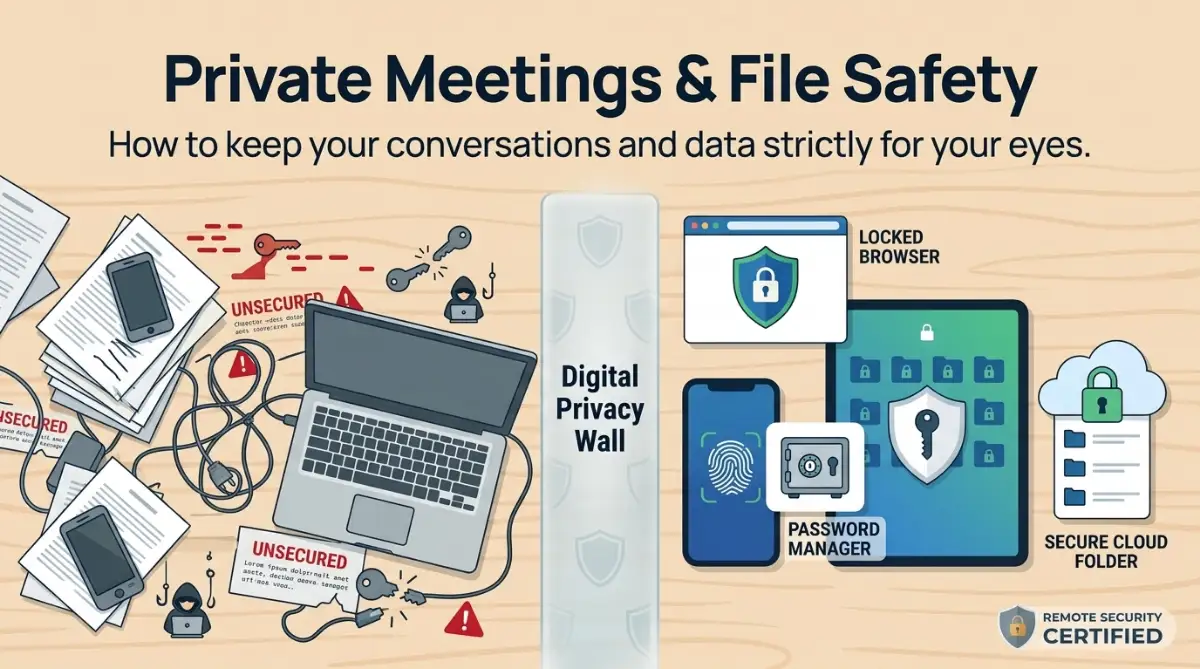 Most of us think that having a strong password is the only thing that matters. While that is true, your device hygiene goes much deeper than just a password. Your laptop, phone, and tablet are gateways to your professional life, and they need daily care.
Create a "Work-Only" Digital Boundary
Quick Security Scorecard: Are You Safe?
One of the biggest mistakes I made was using my work laptop for personal browsing. I would check my bank account, watch YouTube videos, and download random files on the same machine I used to log into my company servers. Do not do this.
If you can, try to keep your work activities strictly on your work device. If you use one computer for everything, create a separate user profile on your operating system. This keeps your personal files, cookies, and browsing history completely separate from your work environment.
Update Like You Mean It
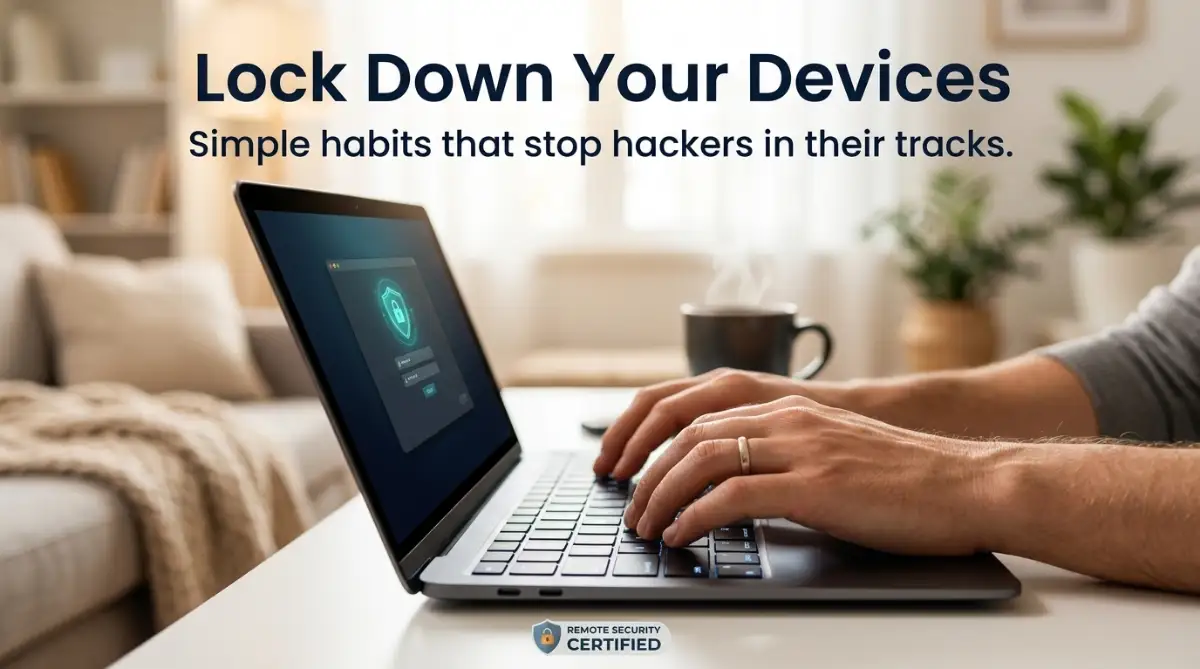
We have all seen those pop-ups that say "Update Required," and we almost always click "Remind Me Later." Stop doing that. Those updates are not just about new features; they are usually patches for security holes that hackers are actively trying to exploit.
Make it a habit to check for updates every single Friday afternoon before you finish your work week. It takes five minutes, but it could save you months of headaches caused by a virus or a data breach. Think of it like locking your front door before you go to sleep; it is a small act that provides massive protection.
The “Zero-Trust” Browser Policy
Your browser is probably one of the tools you use most every day, but it can also become a target for malicious websites, phishing attempts, and harmful downloads. One change I made was to stop relying on my browser to store passwords automatically. Instead, I use a reputable, dedicated password manager to keep my login credentials organized and protected.
A password manager can add an extra layer of security by generating and storing strong, unique passwords, so you don't have to remember them all yourself. It also means your passwords aren't simply sitting in a browser's saved-password list.
I also make a habit of reviewing and clearing cookies and cached data when necessary, especially on shared or unfamiliar devices. Clearing this information can remove stored website data and sign you out of some services, although it isn't a complete privacy solution. The bigger goal is to keep your browser settings, extensions, saved credentials, and stored data under control rather than letting digital clutter accumulate indefinitely.
Mastering Safe Online Meetings and Communication
We spend half our lives in video meetings now, yet most people treat them like casual phone calls. This is a huge mistake. A video call is a meeting with data, and it needs to be treated with the same respect as an in-person boardroom discussion.
The Power of the Waiting Room