

When the Screen Freezes, Your Patience Snaps
We have all been there: the screen freezes, the video call glitches, and suddenly you are offline in the middle of an important task. It is infuriating, but the problem is usually right on your desk, not with your service provider. Stop the guesswork. Here is how you can fix your connection and secure your digital life without needing a degree in computer science.
That feeling of helplessness is the worst part. You pay for your connection, you rely on it to get your work done, and yet, it acts like a fickle roommate who only shows up when they feel like it. I spent the next twenty minutes pulling plugs, restarting my router, and whispering encouraging words to my modem, hoping it would wake up.
This happens to so many of us, and it is exhausting. You buy faster packages, you talk to your provider, but sometimes, the fix is right under your nose. Most of the time, the issue isn't with the company on the other end of the wire. It is sitting right there on your desk, collecting dust.
Let’s stop the guessing games. We are going to look at how to get your connection back to where it needs to be, without needing a degree in computer science. You deserve a setup that works for you, not against you.
Quick Internet Health Check:
-
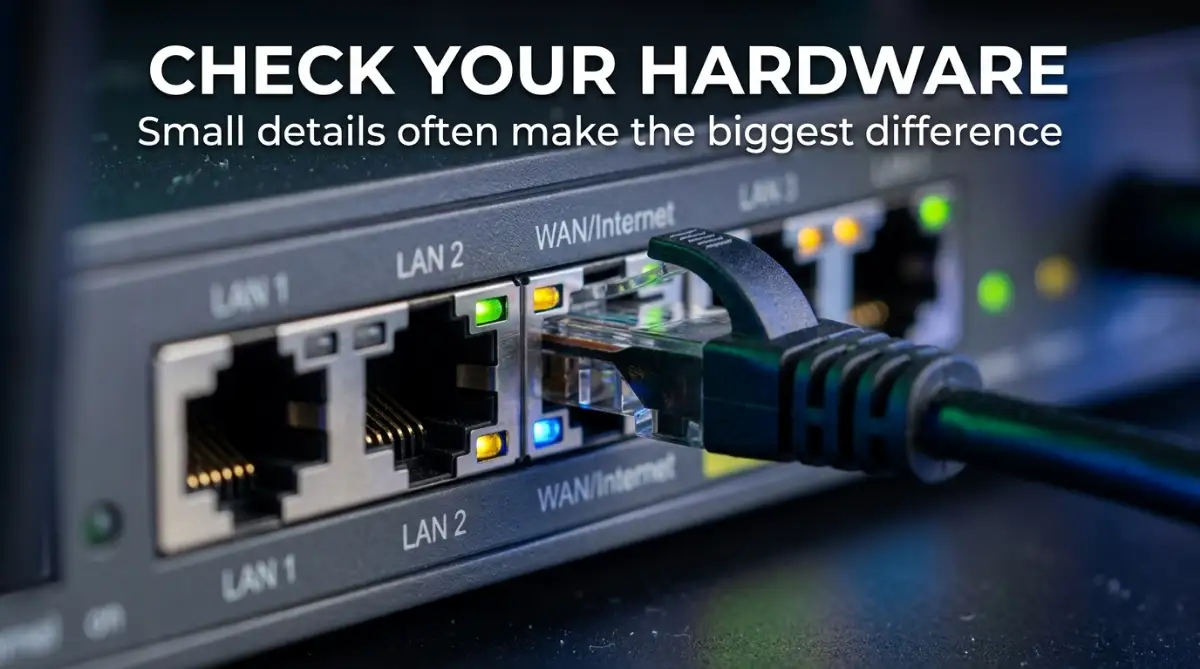
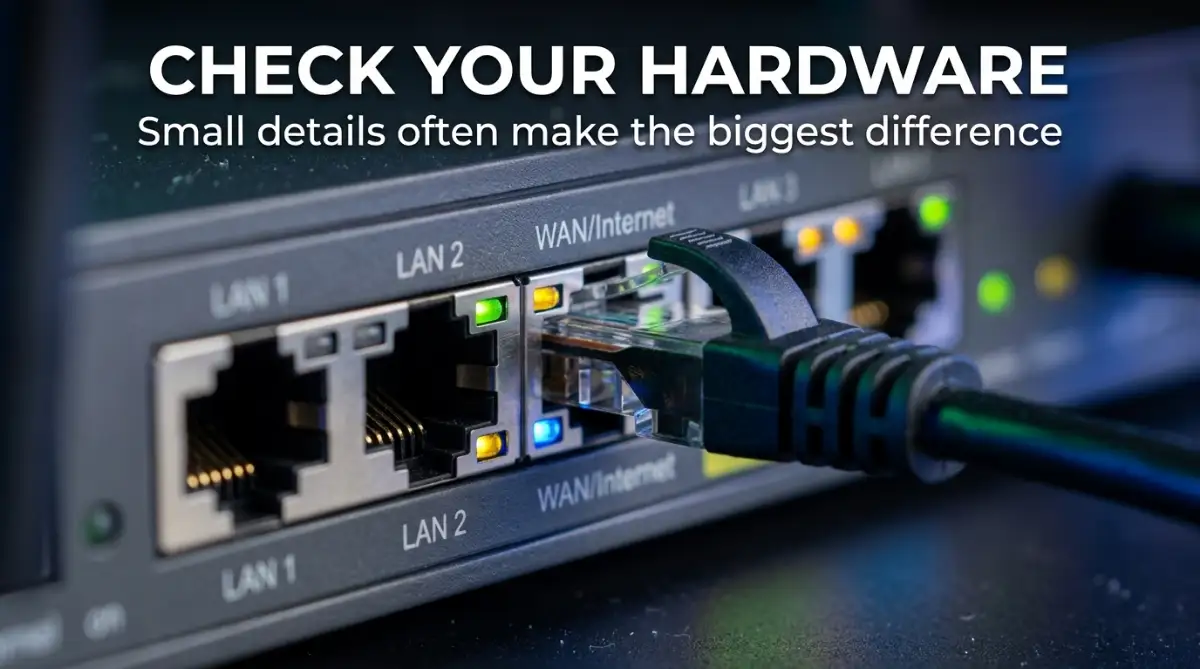
Lights solid or blinking? If they are blinking rapidly or orange/red, your router is likely disconnected from the service line.
-
Is it just one device? If your phone works but your PC doesn't, the problem is your PC, not the router.
-
Is it slow or dead? Slow speeds usually mean range issues; dead connections usually mean hardware freezes.
The Bottom Line:
-
Router Naps: A simple 30-second power cycle fixes 80% of connection issues.
-
Location Matters: Keep your router high and central, away from walls and cabinets.
-
Band Selection: Use 5GHz for streaming/gaming and 2.4GHz for simple smart devices.
-
Lock It Down: Turn on 2FA today; it is the single best way to protect your personal accounts.
The First Line of Defense: Power Cycling

We often treat our routers like they are immortal machines that can run forever without a break. In reality, they are small computers that perform thousands of operations every single second. Over time, they get tired, their memory fills up, and they start to stutter.
The easiest, most effective fix is also the one we forget the most. You need to give your hardware a proper reset. I don't mean just hitting a button on your phone.
Unplug the power cable from the back of the router. Don’t just turn it off; take the power cord completely out of the wall outlet. Wait at least thirty seconds before you plug it back in.
Why thirty seconds? It allows the capacitors inside the unit to fully discharge, clearing the temporary memory. Think of it like a nap for your device.
Once you plug it back in, give it a few minutes to boot up. The lights might blink for a while as it talks to your internet provider. Don't rush this process; let it fully handshake with the outside world.
Check the "Roadmap" of Your Home Network
Think of your home internet like a highway. Your router is the main gate, and your devices are the cars trying to reach their destination. If you have too many cars on one lane, or if the road has too many turns, traffic jams are inevitable.
Where you put your router is the biggest factor in your signal strength. If you have it hidden inside a cabinet, behind a television, or tucked away in a corner of your basement, you are essentially building a wall around your signal. Wi-Fi signals have a hard time traveling through concrete, metal, and thick wood.
Try to keep your router in an open, central location. The higher up it is, the better. Waves travel downwards and outwards, much like a lamp lights up a room.
If you have a large home, one router might simply not be enough. You might be asking it to stretch further than its physical capabilities allow. Distance causes signal degradation, which means slower speeds and unstable connections.
 Managing the Traffic Jams
Sometimes, your internet isn't actually broken; it is just being overworked. Every smart light, every doorbell, every phone, and every tablet in your house is constantly checking in with the router. Even when you aren't using them, they are sending tiny "heartbeat" signals to stay connected.
If you have forty devices connected to one router, you have a traffic jam. Some routers are built to handle this, but cheaper models struggle to keep up. Take a look at your connected devices.
Are there old tablets that no one uses? Are there smart devices you set up once and forgot about? Disconnect the things that you don't use on a daily basis.
This frees up the router’s processor to focus on the devices that actually matter. It is like clearing the emergency lane on a highway. Your most important devices, like your work laptop or your TV, will suddenly have more room to breathe.
The Dual-Band Secret
Most modern routers support two common Wi-Fi bands: 2.4GHz and 5GHz. Understanding how they differ can help you choose the right connection for different devices and situations.
The 2.4GHz band has a longer range and generally does a better job of reaching through walls and other obstacles. The trade-off is that it usually offers lower speeds and can be more prone to interference because many household devices and neighboring Wi-Fi networks use the same frequency range.
The 5GHz band is usually faster and can provide a more responsive connection when you're relatively close to the router. However, its signal doesn't travel as far and tends to lose strength more quickly when it has to pass through walls or other obstacles.
For activities such as gaming, video calls, or high-definition streaming, a nearby device may benefit from using the 5GHz connection. Devices such as smart bulbs, basic printers, and other gadgets that don't need much bandwidth can often work perfectly well on 2.4GHz.
Using the two bands thoughtfully can help reduce congestion and give your more demanding devices a better chance of getting a stable connection. You don't necessarily need to separate every device manually, but knowing which band is better suited to each situation can make your home Wi-Fi easier to manage.