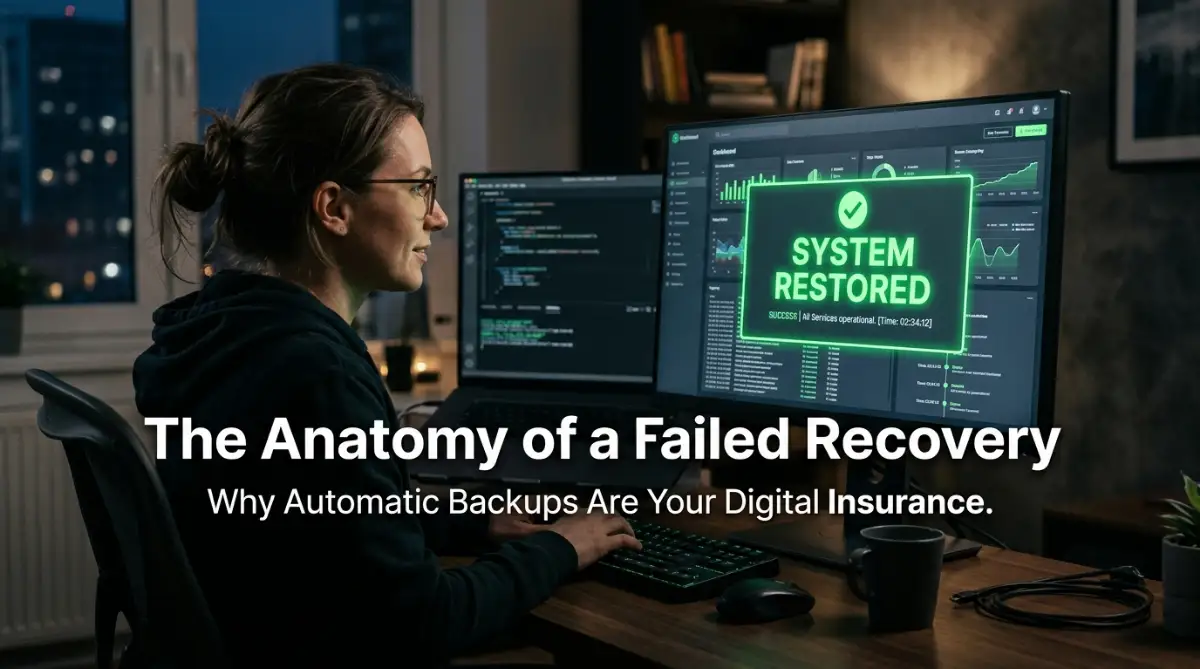
The Silence That Comes After a Site Crash

I still remember the sinking feeling in my chest. It was a Tuesday evening, and I was about to wrap up my work when I decided to quickly update a plugin on my site. I clicked "Update," watched the progress bar hit one hundred percent, and then went to refresh my home page to make sure everything looked fine. Instead of my content, I was met with a blank, white screen.

My heart skipped a beat. I tried to log into the admin panel, but even that was locked out, showing a scary database error code. I had been meaning to run a backup all week, but I kept telling myself, "I'll do it later when I have more time." That night, I spent six hours crying over a keyboard, trying to piece together years of work that seemed to have vanished into thin air.

That moment of panic taught me a hard lesson about the fragility of our online presence. We pour our soul, our time, and our money into our sites, assuming they will just be there when we log in the next morning. But the reality is that one bad line of code or one server glitch can wipe it all away. I learned that day that wishing for a miracle is not a strategy.

You might think that your host handles everything, or that you are too small to be a target for data loss. I used to think the same way. But data loss does not care about how big your audience is or how well-meaning you are. If you do not have a system in place that works without you touching it, you are not really running a business; you are just waiting for a disaster to happen.

I want to save you from that feeling of helplessness. I want to show you why the human element of "remembering to back up" is the biggest weak point in your entire operation. We are going to talk about how to turn your security into a hands-off, automated process. It is time to stop playing Russian Roulette with your hard work and start building a real safety net.

The Hidden Danger of Manual Data Management

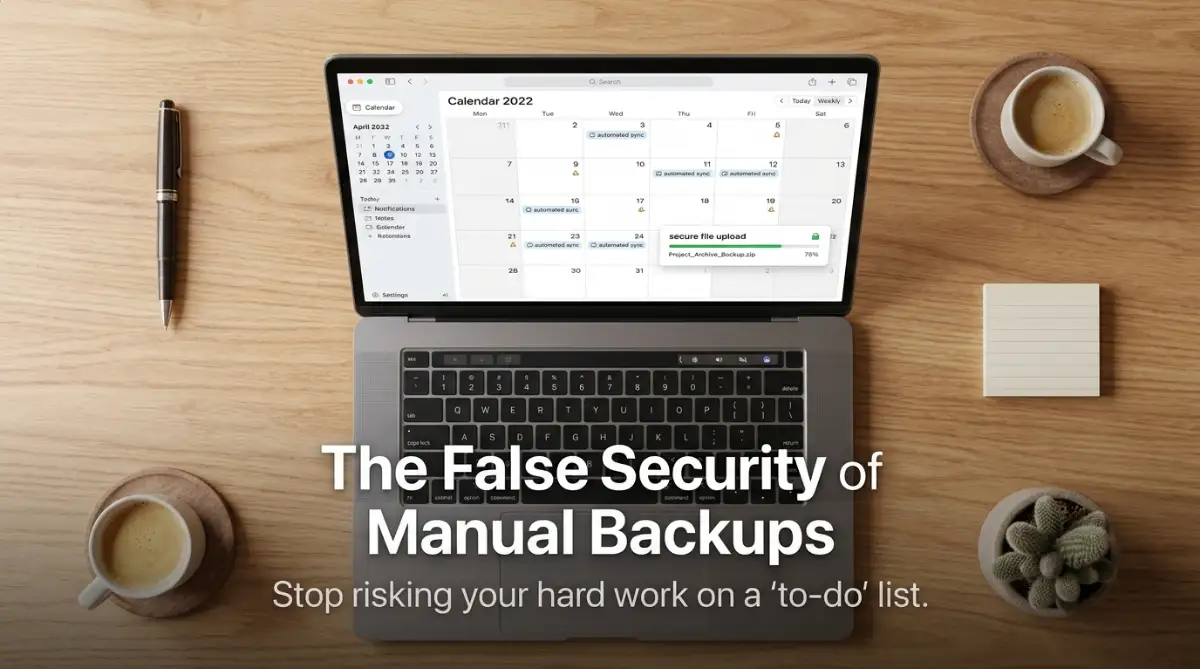
Many site owners fall into the trap of believing that doing a backup once a month is enough. They create a folder on their computer, download a few files, and feel a false sense of security. But here is the problem: what happens when your site breaks three weeks after your last manual save? You lose three weeks of posts, comments, and customer data.

That gap is where the damage happens. If you are running a site that changes daily, a monthly backup is essentially useless. You have to understand that your website is a living thing. Every time you write a post, change a setting, or receive a comment, the database changes.

The Human Memory Gap

We are humans, and we forget things. We get busy, we go on vacation, or we get sick. If your backup strategy relies on you remembering to open a plugin or download a file, you are relying on a flawed system. The best systems are the ones that work even when you are not paying attention.

When I started setting up automated systems, the stress simply disappeared. I no longer had to wake up in the middle of the night wondering if I had backed up the site before that last update. It became a background process, like breathing. You need to get your site to that same state of automated health.
Why Server Backups Alone Are Not Enough

A lot of hosting providers offer "backups" as part of their package. While this is a great safety feature, it should never be your only line of defense. Sometimes, a server-level backup is not granular enough. You might need to restore just one specific file or one post, not the entire site from three days ago.

Having your own automated, off-site backup gives you control. It means you are not dependent on your host's support team to restore your data. You can handle the situation yourself in minutes. This level of independence is what separates hobbyists from professionals.

Setting Up Your Automated Digital Insurance
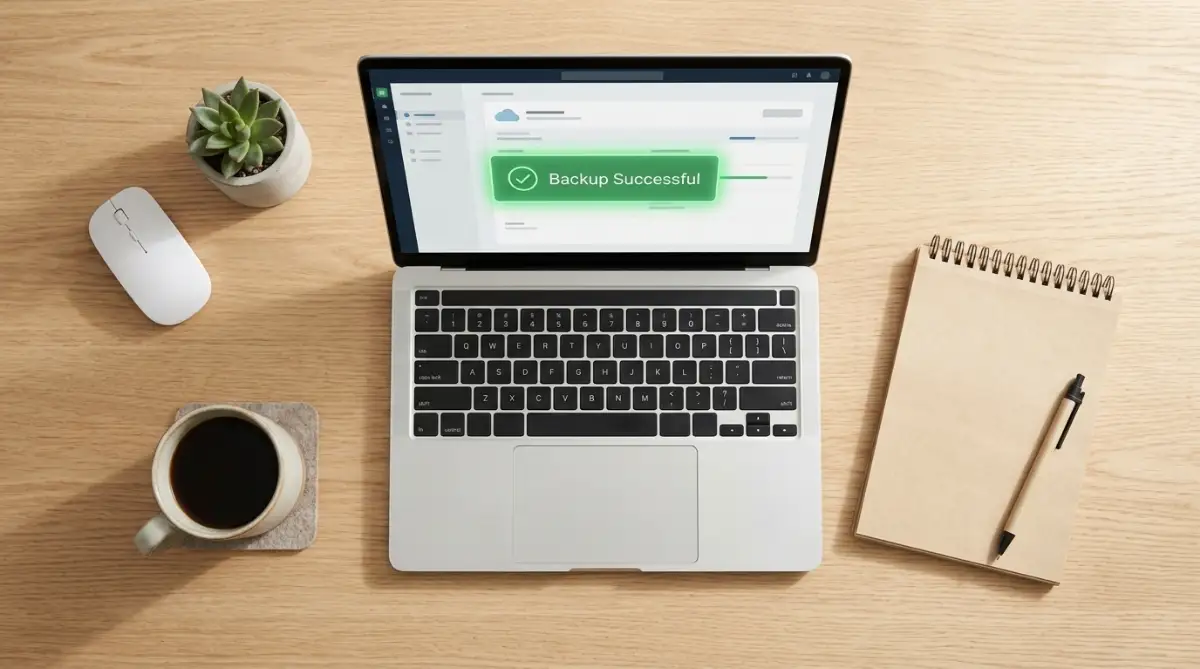
The goal is to move from a "manual reminder" model to an "automated insurance" model. You want a system that triggers at a specific time, saves a copy of your site, and sends that copy to a safe place. This is not about being a tech expert; it is about setting up a set-and-forget process.

Step 1: Choosing a Reliable Backup Frequency

Decide how often your site changes. If you post every day, you need a daily backup. If your site is more static, weekly might be enough. But do not go longer than a week without a save point.

Think about the amount of effort it takes to recreate what you do in seven days. If the answer is "a lot," then you need more frequent backups. It is better to have too many backups than to be missing the one you really need.

Step 2: The Importance of Remote Storage

Never store your backups on the same server as your website. If your server gets hacked or fails, your backups will be destroyed right along with your site. That defeats the whole purpose of having them in the first place.

Use a separate, cloud-based storage service. There are many affordable options that integrate directly with backup tools. You want your data to be in a separate digital building. If your server goes down, your backup should remain safe and accessible in the cloud.

Step 3: Regular Testing of Your Restore Process

This is the step most people skip, and it is the most important one. A backup file is useless if it is corrupted or if you do not know how to use it. You need to prove to yourself that you can actually bring the site back from the dead.

Once a month, take your latest backup and restore it to a local test site or a temporary staging environment. If the site loads and works perfectly, you have passed the test. If it fails, you know you have an issue with your backup configuration. Do not wait for a real disaster to find out your backup files are empty.

[If you want to see how to quickly verify your backup files and ensure they are ready for a disaster, watch this simple walkthrough. It covers the exact process I use every month to keep my data safe.]

Step 4: The 3-2-1 Rule for Total Safety

If you want the highest level of security, follow the 3-2-1 rule. Keep three copies of your data, store them on two different media types, and keep one copy off-site. This sounds intense, but for a website, it is quite simple.

One copy is your live site. The second is your automated cloud backup. The third could be a manual download stored on an external hard drive in your home office. This makes it impossible for a single event to destroy all your records.

Pro Tip: My "Realization" Moment

I once trusted an automated plugin completely, but I failed to check the storage limits on my cloud account. The plugin stopped working because the storage was full, and I didn't get a notification. My site grew, and the backup simply died silently. Now, I always set up an email alert that tells me if a backup fails. I also log in once a month just to check that the files are actually appearing in my storage folder. Trust, but verify.

How to Handle Updates Without Fear

One of the biggest reasons people need backups is because an update broke their site. Updates are necessary for security, but they are also a common source of bugs. Having an automated backup allows you to update your plugins and themes with confidence.

The Pre-Update Ritual

Before you update anything, trigger a manual backup. Yes, even if you have automated ones running. This gives you a "point in time" snapshot right before you make changes. If the update breaks something, you can roll back to the version you had five minutes ago.

This practice removes the fear of clicking the "Update" button. You stop viewing updates as a risk and start seeing them as a standard maintenance task. It changes your entire relationship with your website's software.

Dealing with Database Bloat

Sometimes, automated backups can become large and slow because of unnecessary data. Plugins often leave junk behind when you uninstall them. Check your database once in a while to clean up orphaned tables.

A smaller, cleaner database makes your backups run faster and take up less storage space. It also helps your site run more smoothly. Think of it as spring cleaning for your digital files. A tidy database is a happy database.

Analyzing the Impact of Data Loss

When we talk about "lost data," it is easy to think in technical terms. But we need to look at the human cost. Lost data means lost money. If you run an e-commerce store, every hour your site is down, you are losing sales.

But it goes deeper than that. It is about your reputation. If a visitor comes to your site and sees an error page, they lose trust in you. They assume you are not serious about your business. Earning back that trust is much harder than spending a few hours setting up a proper backup system.

The Emotional Toll

We rarely talk about the stress of managing a broken site. It affects your sleep, your mood, and your ability to focus on other parts of your life. When you know you have a solid, automated system running in the background, you get your mental space back. You can focus on creating content and helping your readers instead of worrying about the "what ifs."

Protecting Your SEO Efforts

Search engines reward reliable, fast-loading, and secure websites. If your site is frequently down because of technical issues you cannot fix, your rankings will suffer. Google's crawlers do not like visiting sites that return 500 errors.

By having a reliable recovery plan, you minimize your downtime. You show the search engines that your site is dependable. This is a quiet, behind-the-scenes SEO tactic that keeps your hard-earned traffic flowing. You are protecting your presence in the search results by ensuring your site is always there to be found.

Choosing the Right Tools for Automation

There are many ways to automate your backups. You do not need expensive, enterprise-grade software to get the job done. Many lightweight, user-friendly tools are available that handle everything in the background.

What to Look for in a Backup Tool

Look for tools that offer scheduled backups and remote storage support. The best tools are the ones that send you a summary email after every job. "Backup successful" is the best email you can receive during a busy workday.

Do not just look for the cheapest option. Look for the one that has a reputation for being reliable and easy to restore. Read reviews and look for community support. A tool that is widely used is often the best choice because it has been tested by thousands of other site owners.

Integrating with Your Workflow

The best tool is the one you actually use. If a tool is so complicated that you avoid configuring it, it is not helping you. Find something that feels intuitive. Once you set it up, you should rarely have to touch it.

If you find yourself spending more time managing your backup tool than working on your site, it is too complicated. It should be a quiet, invisible worker that does its job without bothering you. That is the hallmark of a great system.

Maintaining Your Digital Insurance Policy

You wouldn't cancel your house insurance just because your home didn't burn down this year. The same applies to your website backups. It is a long-term commitment to your safety.

The Monthly Audit

Set a recurring event in your calendar for a "Backup Audit." Spend ten minutes verifying that your files are being saved correctly. Open your remote storage, check the dates of the recent files, and try a test restoration on a dummy site.

This small habit ensures that your insurance policy is active and valid. It takes almost no time, but it provides massive peace of mind. It turns a potential panic into a simple, predictable process.

Educating Your Team

If you have other people working on your site, make sure they know about the backup system. They should not be afraid to make mistakes, because they know you have a safety net. This empowers your team to experiment and grow the site without the fear of destroying your progress.

A shared sense of security is a powerful thing. It encourages innovation and creativity. When your team knows that a "bad update" is not the end of the world, they are more likely to take the risks necessary to improve your business.

Building Confidence Through Preparation

There is a unique kind of confidence that comes from knowing you are prepared. When you no longer fear the crash, you become a bolder site owner. You can update your software, change your theme, or install new features without that lingering anxiety in the back of your mind.

The Value of Professionalism

Taking responsibility for your own data is a hallmark of a professional. Clients and readers respect site owners who have their act together. It shows that you value their time and their data as much as you value your own.

When you invest in a proper backup system, you are telling the world that your work matters. You are saying that you take your role as a digital creator seriously. That respect reflects in everything you do, from the quality of your writing to the design of your site.

Embracing the Future

The internet is an unpredictable place. Things break, servers fail, and code gets corrupted. We cannot control those events. But we can control how we prepare for them.

By building an automated backup strategy today, you are future-proofing your work. You are making sure that no matter what happens, you have a path to recovery. That is not just insurance; that is freedom.

It is time to stop worrying and start building. Go check your settings, choose a reliable storage location, and set up your automated schedule. Your future selfβ€”the one who doesn't have to spend a Tuesday night crying over a blank white screenβ€”will thank you for it.

Take control of your data today. It is the smartest investment you will ever make in your website. And remember, in the digital world, the only thing more dangerous than a technical glitch is the arrogance of thinking it will never happen to you. Stay prepared, stay safe, and keep growing.

Mastering the Art of Data Resilience: Expert Strategies

When you move past basic backups, you enter the territory of true data resilience. Many site owners treat their backup plugin as a "set and forget" solution, but the reality is that your digital assets require active management. Think of your backup strategy like a high-performance engine; it needs regular maintenance to keep running without issues.

One advanced strategy is implementing Incremental Backups instead of full site dumps every time. A full backup consumes significant server resources and can cause your site to lag during the process. Incremental backups only save the files that have changed since the last run. This method is faster, lighter, and much more efficient for daily operations.

Another pro-level secret is the use of off-site redundancy. Even if your backup plugin works perfectly, storing files on the same server as your website is a gamble. If a hardware failure wipes out the drive, you lose both your live site and your insurance. You should aim for a storage strategy that follows CISA’s guidelines on data backup integrity, ensuring that your information is kept in a separate geographic location.

The "Heartbeat" of Your Backup System

You need to know immediately if a backup fails. Most professional tools offer email or SMS alerts. If you aren't receiving a "Success" message on your scheduled day, investigate it right away.

Think about the silent threat of unauthorized domain transfers that can happen if you are not watching your system logs. Similarly, if your backup system fails silently, you might be left with weeks of outdated files without even knowing it. Always configure your settings to "Push" alerts to your mobile device or primary email.

Bridging the Skill Gap in Automation

Setting up automation might feel intimidating, but you can bridge the professional skill gap by mastering basic automation tools. You don't need to be a developer to understand how to connect your site to a cloud storage bucket like Amazon S3 or Google Drive. Once you master this simple connection, you gain total control over where your data lives.

This level of control prevents you from being locked into a specific hosting provider’s ecosystem. If you ever need to migrate your site to a new host, you simply take your cloud backups with you. It is the ultimate form of portable digital insurance.

Monitoring the Integrity of Your Files

Sometimes, a backup file can get corrupted during the transfer process. This is rare, but it happens. That is why I always suggest a "checksum" verification. This is a technical way of saying the system double-checks that the file sent is identical to the file received.

If your backup tool does not have this feature, consider upgrading to one that does. It adds a layer of certainty that your files are pristine. You want to be 100% sure that when you hit that "Restore" button, the system will respond exactly as you expect.

The Emotional Trap of False Security

One of the most common pitfalls I see is the "Manual Fallacy." This happens when you convince yourself that you are safe because you "have a backup on your laptop." This is an emotional response, not a logical one. You feel better because you did something, but that feeling of safety is often built on thin ice.

I have spoken to people who lost years of content because they kept their "insurance" on a thumb drive that broke or a laptop that got stolen. Manual backups are prone to human error. You might forget to include the database, or you might save a version of the site that is already broken without realizing it.

The "Overwrite" Nightmare

A frequent mistake is restoring a backup incorrectly and accidentally overwriting the live data with old, outdated information. Imagine you have a busy e-commerce store. You restore a backup from three days ago, and suddenly, all the sales you made in the last 72 hours are gone. This is a business-ending scenario.

When you restore, always do it to a staging area first. Never push a backup directly to a live environment without checking it in an isolated space. This practice protects your current operations from being damaged by a "fix" that is actually a regression.

Ignoring the Host’s Terms

Many people think, "My hosting provider does this for me, so I don't need to worry." This is the same logic as thinking home insurance companies will cover every claim, only to be shocked when the policy has limits. Check your hosting contract. Does it guarantee a backup restoration, or is it a "best effort" service?

Often, hosts have specific limits on how far back they can go or how much data they will store for you. Relying solely on their internal system puts your business’s fate in their hands. If they have a server-wide failure, they might not be able to help you at all.

The "Passive Income" Mirage

There is a concept known as the passive income fallacy, where site owners assume their business runs on autopilot forever. They forget that digital assets are like physical property; they require maintenance, repairs, and security checks. Ignoring your backups is like ignoring the foundation of a house. You might get away with it for a long time, but when the ground shifts, the whole structure will collapse.

Storing Backups on the Same Server

This is perhaps the most avoidable mistake. If you save your backup files in a folder on your web server, you are not really backing up. You are just creating a copy in the same room that is about to catch fire. If the server is hacked, the attacker will likely delete your backup files too, ensuring you have no way to recover.

Always push your backups to a distinct, remote destination. Think of it like keeping a copy of your important documents in a bank safe deposit box, not in a drawer in your office. It needs to be physically or logically separated from the site itself.

Building a Bulletproof Recovery Plan

You have the knowledge to protect your work now. It is time to treat your website like the professional asset it is. Stop looking at backups as a chore and start viewing them as your financial and operational backbone.

Your Action Plan for Tomorrow

  1. Check your storage: Ensure your backups are going to a remote cloud location, not your server.
  2. Verify the schedule: Set your automation for the time of day when your traffic is lowest.
  3. Perform a test: Restore your most recent backup to a local environment to confirm it works.
  4. Set up alerts: Make sure you get an email notification if a backup fails.
  5. Simplify your stack: Remove any unused plugins that might be causing database bloat.

The Expert Insight

I have managed sites that have crashed during high-traffic events, and I can tell you that the only thing that keeps you sane is knowing a "restore" is just a few clicks away. Do not wait for a crisis to appreciate the value of a solid system. When you know you are safe, you make better decisions for your site’s growth.

You can stay calm and invest wisely during market volatility in your business, but that calmness only comes when you are not constantly worried about losing your data. Build the safety net first, and the growth will follow. I promise you, taking these steps will change your entire perspective on managing a website. It turns the process from a source of stress into a source of confidence.

Common Questions About Site Protection

How often should my site run an automated backup?

It depends on how often you update your content. For a blog, daily is standard. For a store with constant sales, you might need real-time incremental backups.

Can I use a free plugin for this?

Yes, many free plugins are excellent. Just make sure they offer the ability to send backups to a remote location like Google Drive or Dropbox. Don't settle for a plugin that only saves files to your local server.

What if my backup file is too big?

This usually means your media library or logs are full of junk. Clean up your site first. If it is still too big, use a tool that allows for "split" backups, which break the data into smaller, manageable chunks.

Does a backup slow down my site performance?

If configured correctly, no. Schedule your backups to run during off-peak hours, such as late at night. This keeps your site fast for your actual visitors while your background tasks run quietly.

Is an automated backup the same as a clone?

Not exactly. A backup is a compressed file of your data. A clone is a mirror image of the site. You need a backup for security, while a clone is often used for development or staging.

Disclaimer: This guide provides general information on website backups and data security. Every website configuration is unique, and you should test your specific backup solution thoroughly before relying on it. I am not liable for any data loss or technical issues that may arise from implementing these suggestions. Always keep a verified, offline copy of your most critical data and consult with your hosting provider if you have concerns about server-side performance.