
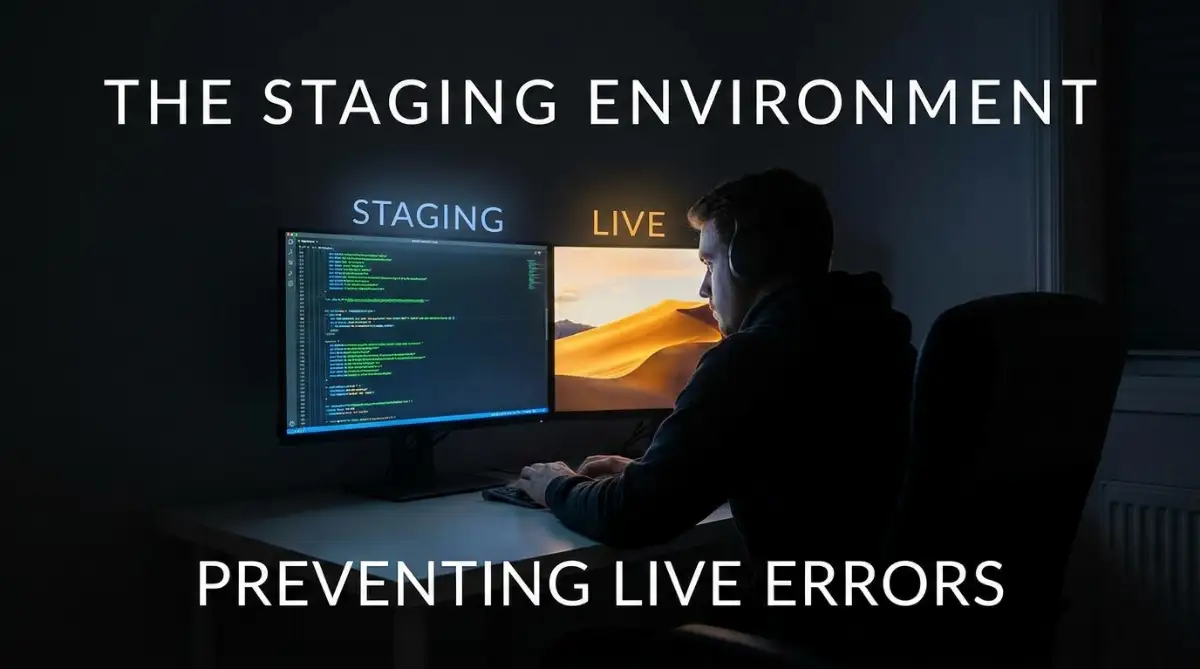
TL;DR: The Website Update Cheat Sheet
-
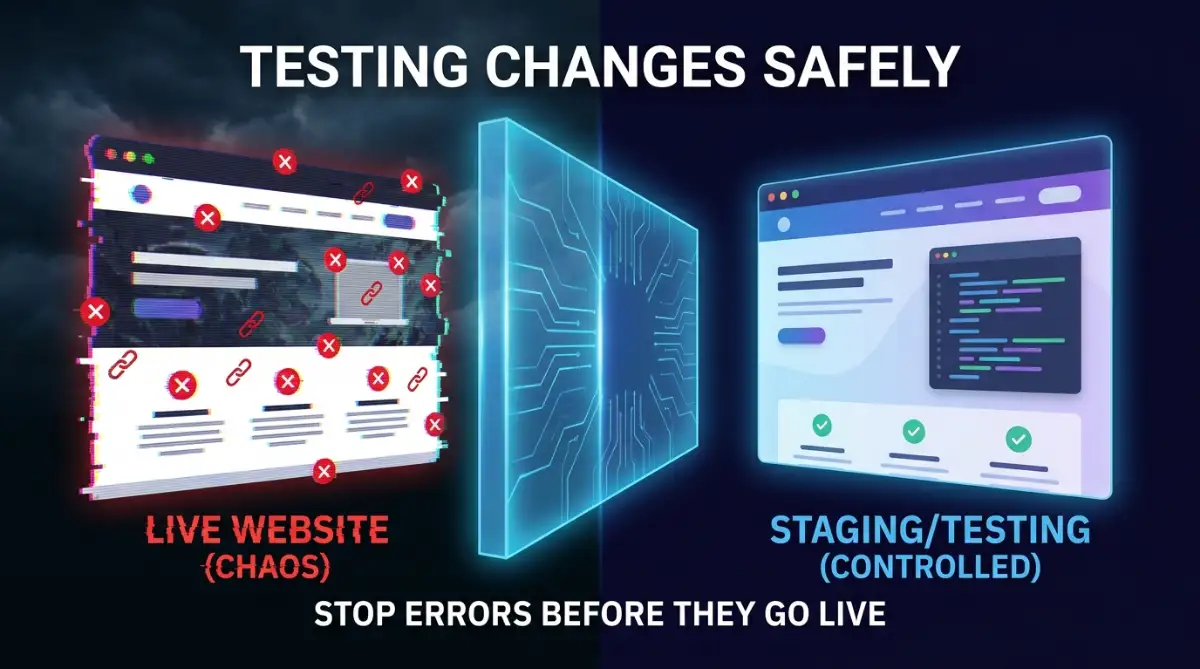
Never Test Live: Your live site is your store; don't use it as a lab.
-
Mirror Your Environment: Make your staging area as close to your live site as possible.
-
Update One by One: If you change five things at once, you’ll never know which one broke the site.
-
Test on Mobile: A site that looks good on a monitor might be broken on a phone. Always check both.
The 3 AM Panic: When the Update Goes Wrong
Think about the last time you hit "Update" and crossed your fingers, hoping your site wouldn't break. We have all played that dangerous game, trusting that things would just work out. If you are tired of that 3 AM panic when a site suddenly goes dark, you need to change how you handle your workflow. Let’s look at a safer, smarter way to update your site without losing sleep.
When I woke up the next morning, my phone was blowing up. Twenty missed calls, thirty urgent emails. The site was down. Customers were clicking "add to cart," but the button was doing absolutely nothing. The checkout page was throwing a massive error that I hadn't seen once during my testing.
That morning was a hard lesson. I realized that my desire to move quickly was actually a liability. I wasn't saving time; I was risking the entire reputation of the business. The feeling of helplessness when a live site is broken is something no developer or business owner wants to experience. It’s expensive, it’s embarrassing, and it’s entirely avoidable.
We all want to move fast. We want to update our sites, add new looks, and change functionality to keep things fresh. But when you treat your live website like a playground, you are one bad click away from a disaster. The "publish" button should be the very last step, not the first step of your testing process.
Creating Your Own Private Mirror
 The secret to avoiding those mid-night heart attacks is something called a staging environment. If you aren't using one, think of it as a clone of your website that only you and your team can see. It looks like your live site, acts like your live site, and uses the same data, but it is tucked away behind a digital curtain.
When you make a change, you apply it to this private mirror first. You can break things here. You can make mistakes here. You can see how a new update interacts with your existing plugins or themes without a single customer ever knowing. It gives you the freedom to experiment without the fear of wrecking your revenue stream.
Why Your Live Site Shouldn't Be a Test Lab
You might be thinking, "My site is small, I don't need a fancy setup." That is a common trap. It doesn't matter if you have ten visitors a day or ten thousand. If your site is your business, any downtime is a problem. Testing on your live site means you are experimenting with your income.
Think about a restaurant. Would you invite customers to sit down and eat in a kitchen while you are still trying to figure out if the stove works? Of course not. You test the recipes, you make sure the appliances are safe, and then you open the doors. A staging environment is your kitchen. You perfect the experience there, and only when it’s flawless do you serve it to the public.
The Psychology of Testing Without Fear
There is a huge psychological benefit to staging. When you are terrified of breaking your live site, you naturally avoid making necessary updates. You hesitate to fix things because you don't want to risk an outage. This leads to an outdated, insecure website.
When you have a staging environment, that fear disappears. You are more likely to keep your site updated, add new features, and polish the design because you know you have a safety net. It actually makes you a better, more proactive site manager. You start seeing updates as improvements rather than threats.
Steps to Implement a Robust Testing Workflow
Common Update Failures & How to Fix Them
You don't need to be a coding genius to set this up. Most hosting providers offer a "one-click staging" feature these days. Even if yours doesn't, the concept is simple. Here is how you can build a workflow that protects your work and your traffic.
Mirroring Your Production Environment
The goal is to make your testing area as close to the real site as possible. This means you need the same server settings, the same database structure, and the same plugins. If the staging area is too different from the live site, you will get "false positives."
What is a false positive? It’s when your update works perfectly in testing, but breaks the moment it hits the live server. Why does this happen? Usually, because the live server has different configurations or security settings. Try to keep your staging setup as identical to your live environment as you can.
Running Controlled Experiments
Once you have your mirror site, create a plan for every update. Don't just click "update all." Change one thing at a time. If you update your contact form and your site breaks, you know exactly what caused the problem.
If you update five plugins at once and the site crashes, you have no idea which one is the culprit. You will spend hours trying to track down the error. Update one item, check the site, verify that everything still works, and then move to the next.
Pro Tip: My Realization
I learned the hard way that "it works on my machine" is not a valid excuse. I once pushed an update that looked great on my computer screen but looked like a jumbled mess on mobile phones. Now, I always check the staging site on a phone and a tablet before I do anything else. If you can't test it on multiple devices, you aren't really testing it.
The Final Verification Phase
 Before you push the changes live, do a "sanity check." Go through the most important parts of your site. If it’s an e-commerce store, go through the entire checkout process. If it’s a blog, check your comment forms and subscription boxes.
If you just look at the home page and think "looks good," you might be missing the errors hiding in the sub-pages. Spend ten minutes clicking through the site like you are a customer. It is the cheapest insurance you will ever buy.
Check out this video on the basics of website testing to see how this workflow looks in practice:
If you want to understand how staging prevents errors and keeps your site running smooth, watch this guide:
After watching, you will see exactly why even simple staging tools can save you from a major headache. It will change how you approach every single update you do.
Comparing Your Live Site vs. Your Staging Area
To make it clear why this is a non-negotiable part of development, let’s look at how they differ.
This table shows the divide. One environment is built for performance; the other is built for protection. When you try to make your live site do both, you inevitably end up with a shaky platform that can fail at the worst possible moment.
Preventing the "Broken Link" Syndrome
One of the most annoying errors is the "404 Not Found." When you change page URLs or rename categories, you might accidentally leave a trail of broken links. On a live site, this frustrates your visitors and makes Google think your site is poorly maintained.
In a staging environment, you can use automated tools to scan for broken links before you ever go live. You can see which pages are missing and fix them while nobody is watching. You save your visitors from hitting a "page not found" screen, and you keep your SEO ranking healthy.
Communicating with Your Team
If you have people helping you manage the site, staging is essential for collaboration. You can share the staging link with your designer or your copywriter. They can look at the new layout, proofread the new text, and provide feedback.
This keeps the design process professional. You aren't guessing what the client wants; you are showing them a preview. When they sign off on the staging site, you know exactly what is going to happen when you push it live. There are no surprises, no "I didn't mean for it to look like that," and no last-minute changes on a live server.
Managing Content Updates Safely
It isn't just about code. It’s also about content. Sometimes you want to rewrite a long article or redesign a landing page. If you do this on the live site, you might end up with half-finished drafts appearing for your readers to see.
In your staging environment, you can take your time. You can format the text, test the images, and make sure the design looks perfect. You can leave the work in progress for days if you need to. Your live site stays clean, professional, and consistent, while you do the heavy lifting in the background.
The Long-Term Stability Benefits
When you commit to using a staging environment, you are choosing stability over speed. It feels slower because you have an extra step, but you are actually much faster in the long run. You aren't spending time reacting to crises; you are spending time building a better experience.
Your visitors notice. They notice when a site is reliable. They notice when things load correctly. They notice when buttons actually work. A stable site builds trust, and trust builds a loyal audience. If you keep breaking your site, people will eventually stop coming back. They will assume you are unreliable.
Make a Backup Before Every Update
Before updating your website’s software, create a manual backup, even if you already have automatic backups enabled. This gives you a recent recovery point from just before the changes. If an update causes errors or breaks an important feature, you can restore the previous version instead of trying to fix everything from scratch.
Having a fresh backup also makes website maintenance less stressful. Rather than worrying about what might go wrong every time you click the “Update” button, you can approach updates with greater confidence. Make this a regular habit, and software updates will become a more manageable part of maintaining a secure, reliable website.
Building a Culture of Quality
If you work with others, make staging the stan