
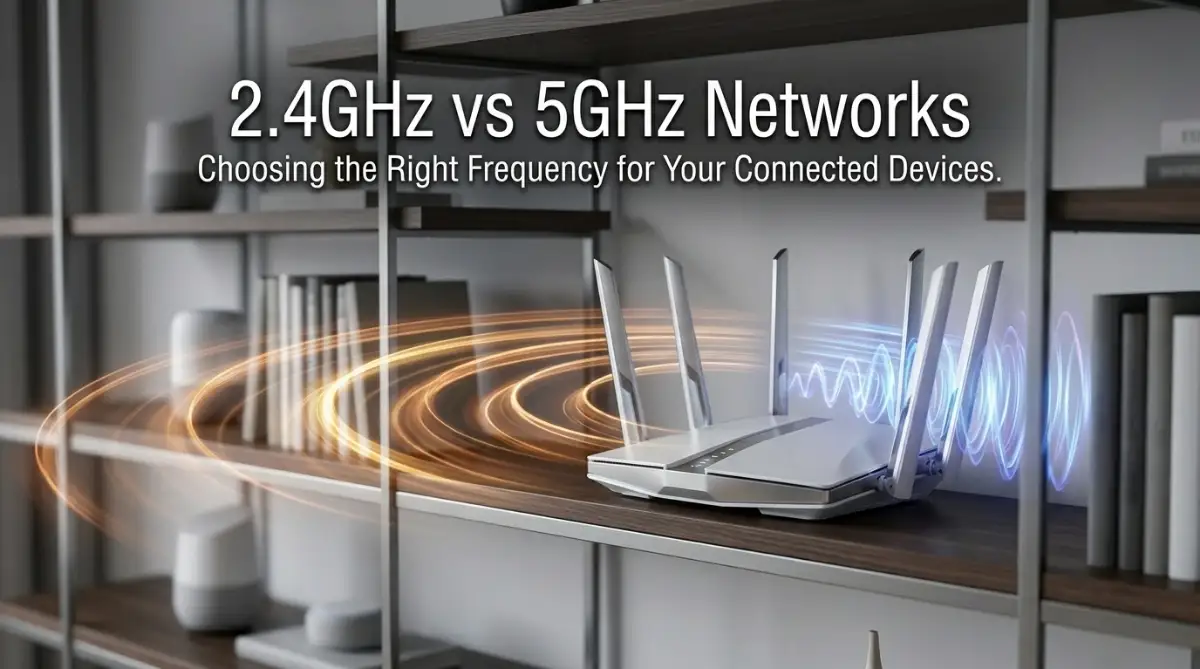
Quick Start: How to Fix Your Wi-Fi Today
Prioritize 5GHz: Move your gaming console, TV, and PC to the 5GHz band immediately for maximum speed.
Isolate Smart Gear: Keep your smart plugs, light bulbs, and sensors on the 2.4GHz band to avoid network congestion.
Optimize Placement: Get your router out of the cabinet and off the floor; height and clear air are the secrets to better range.
Clear the Air: Use a Wi-Fi analyzer app to see if your neighbors are hogging your channel and switch to a clearer one if needed.
The Invisible Battle Happening Inside Your Walls
We’ve all been there: you’re right in the middle of a high-stakes game or a favorite movie, and the screen freezes. You immediately blame your internet provider for slow speeds. But here is the secret most people miss—the problem often isn’t your plan; it’s how your Wi-Fi is talking to your devices. A few simple settings can turn that buffering nightmare into a seamless, high-speed experience.
It wasn't until a friend visited and casually glanced at my router that I realized I was part of the problem. He asked why I had all my smart home devices, my laptop, and my streaming box all crammed onto the same Wi-Fi band. I looked at him like he was speaking a different language.
The frustration I felt—that feeling of being trapped by a "slow" internet connection—is something I hear about all the time. People buy expensive routers and pay for high-speed plans, but they miss the small configuration steps that actually make the tech work. It feels like your connection is failing you, but often, the hardware is just fine.
You don't need a degree in physics to fix this. You just need to understand the simple trade-off between range and speed. Once you see it, you can’t unsee it, and your internet experience will change instantly. Let’s look at why your devices might be struggling and how to give them exactly what they need to run fast.
The Physics of Airwaves: A Simple Breakdown
To understand why your Wi-Fi acts the way it does, we have to look at the two different lanes your router provides. Think of these as two distinct highways that your data travels on to reach your laptop or phone.
| Feature | 2.4GHz Band | 5GHz Band |
| Best For | Walls, distance, smart home gadgets | Gaming, 4K streaming, video calls |
| Speed | Lower (but consistent) | High (blazing fast) |
| Range | Long (goes through floors/walls) | Short (best in the same room) |
| Congestion | High (neighbor interference) | Low (less traffic) |
The Reliable Long-Distance Runner: 2.4GHz
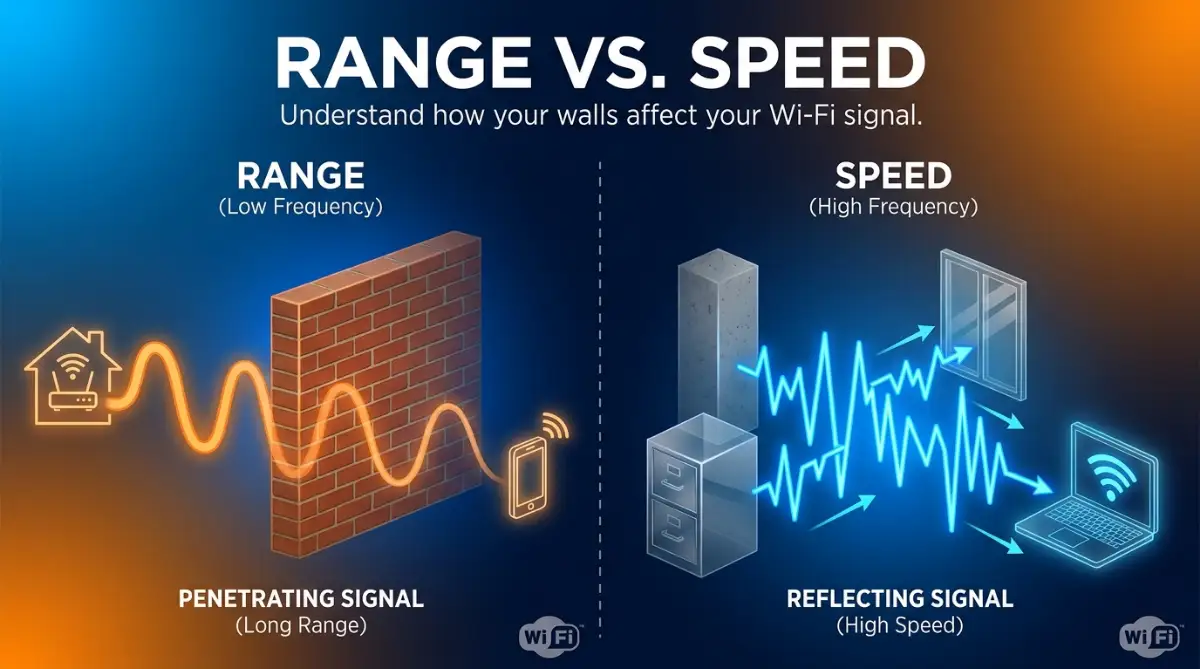
The 2.4GHz frequency is the veteran of the wireless world. It has been around for a long time, and almost every device on the planet is built to use it. Its main strength is its ability to travel through walls, floors, and furniture.
If you are trying to get a signal from your router to a room on the other side of the house, this is the band you want. It is the "freight train" of your network; it carries data over long distances without getting stopped by the average bedroom door. However, it is also very crowded.
Your microwave, your neighbor's router, and even some Bluetooth devices use the same 2.4GHz space. This leads to interference. When too many signals try to occupy the same space, the "train" gets stuck in traffic. This is why your connection might feel slow or "choppy" even if the signal strength bars look full.
The High-Speed Express: 5GHz
The 5GHz frequency is the newer, faster lane. It is designed for speed and carries a massive amount of data in a very short time. If you want to stream high-definition video or play online games without lag, this is where you want to be.
The trade-off is that it is a "sprinter," not a long-distance runner. The 5GHz signal struggles to punch through solid objects like brick walls or thick concrete. If you move too far from the router, or if there is a heavy object in the way, the speed drops off much faster than it does on the 2.4GHz band.
Think of 5GHz as a wide, open highway with very little traffic. Because fewer devices use this frequency, you don't have to worry as much about your neighbor’s router interfering with your signal. It is clean, it is quick, and it is efficient for your high-bandwidth devices.
Choosing the Right Wi-Fi Band for Each Device
Different devices have different connectivity needs, so using the same Wi-Fi band for everything isn't always the best approach. Take a smart light bulb, for example. It sends very little data and usually doesn't need high speeds. A 2.4 GHz connection is often a better fit because it generally reaches farther and passes through walls more effectively than 5 GHz.
Gaming consoles, 4K televisions, and other devices that handle large amounts of data can benefit from a 5 GHz connection. It typically offers faster speeds and less interference from neighboring Wi-Fi networks, especially over shorter distances. This can help with high-quality streaming, online gaming, and large downloads.
The key is to match the connection to the device's needs. Use 2.4 GHz for compatible smart devices that need wider coverage, and consider 5 GHz for devices that benefit from higher speeds. Keep in mind that your router's capabilities, signal strength, and the distance between each device and the router also affect performance.
A Pro Tip on Router Placement
I once kept my router inside a metal cabinet to keep the room looking "clean." It was a huge mistake. Metal blocks signals, and hiding the router meant the signal had to work twice as hard to reach my devices. My realization: Put your router out in the open, high up, and away from other electronic interference. A few inches of height makes a bigger difference than you might imagine.
Mapping Your Home's Needs
Take a walk through your home and list your devices. Which ones stay in one place? Which ones move with you? Which ones are "always on" but don't move data often?
- Fixed, high-speed devices: PC, Gaming Console, Streaming TV (Put these on 5GHz).
- Mobile devices: Phones, Tablets (Use 5GHz when near the router, switch to 2.4GHz if you wander into the garage).
- Low-power smart devices: Light bulbs, Smart plugs, Temperature sensors (These belong on 2.4GHz).
By sorting them this way, you reduce the congestion on your network. Your router will stop having to balance a hundred different requests on the same crowded lane. It will treat your high-speed devices with priority and give the low-speed devices a reliable path to stay connected.
Want to see how to actually log into your router and name these bands differently? This video walks you through the settings step-by-step.
Handling Signal Interference
If you live in an apartment complex, you are sharing airwaves with dozens of other people. Everyone is using 2.4GHz. You might notice that your internet feels fine in the morning but slows to a crawl in the evening when everyone gets home.
This is classic interference. Your router is trying to talk to your phone, but it is being drowned out by the router next door. When this happens, move your primary devices to the 5GHz band immediately. It is your best tool for escaping the digital "noise" of your neighbors.
Myth vs. Reality: Wi-Fi Edition
-
Myth: "More antennas on my router mean better speed."
-
Reality: Antennas are for signal coverage, not speed. Placement is what actually matters.
-
-
Myth: "I should turn off 2.4GHz because 5GHz is faster."
-
Reality: You’ll break your smart home. Many smart bulbs and plugs only connect to 2.4GHz.
-
-
Myth: "Hiding the router in a cabinet makes the room look better."
-
Reality: You are killing your signal. Routers need airflow and an open path, just like a radio.
-
When to Upgrade Your Router
If you find that you are constantly fighting to get a signal, or if your router is several years old, it might be time for a change. Modern routers often have a feature called "Band Steering." This allows the router to automatically decide which device goes on which band.
It basically takes the guesswork out of the process. Your router will push your TV to 5GHz and your light bulb to 2.4GHz without you having to manage it. It is a fantastic convenience if you don't want to dive into the settings every time you buy a new smart plug.
The Role of Wi-Fi Mesh Systems
For larger homes, even 5GHz might not reach every corner. In these cases, a "Mesh" system is often the solution. These systems use multiple units placed around your house to create one large, seamless network.
They handle the switching between 2.4GHz and 5GHz for you. You don't have to connect to a different network as you walk from the bedroom to the kitchen; the mesh system hands your device off to the closest unit. It is the ultimate way to get 5GHz speeds in every room of the house.
Safety First in Your Network Setup
While we focus on speed, remember that your network security is equally important. When you set up your different bands, ensure both are protected with a strong, unique password. Do not leave the guest network open or use the default password that came with the router.
Security and speed go hand-in-hand. A secure router is often a better-performing router because it keeps malicious traffic from bogging down your resources. Take the time to audit your security once you have finished balancing your frequencies.
Making the Connection Personal
At the end of the day, your home network is the backbone of your digital life. It connects your work, your entertainment, and your family. Spending a little time to organize it pays off every single day.
You don't need to be a tech expert to do this. You just need to be a little bit intentional. Look at your settings, test your speeds, and don't be afraid to experiment. Your home will thank you with smoother streaming, faster downloads, and less frustration.