
When Your Phone Just Cannot Keep Up
We have all been there: that 4% battery warning, the frantic hunt for an outlet, and the sinking feeling that you are about to be cut off from the world. It is a stressful way to live, but here is the secret—most of that battery drain is actually preventable. Your phone isn't dying because it is "old"; it is dying because it is working overtime on tasks you never asked it to do.
Have you ever been in that spot? You step out for the day, fully charged, and by the afternoon, you are hunting for a power bank or a wall outlet like your life depends on it. It is exhausting. But here is the secret: it is rarely about the battery physically dying. Most of the time, your phone is working overtime on tasks you do not even know are happening.
This happens constantly throughout the day. Your phone is basically running a marathon while you are just trying to send a text. It is no wonder you feel the mental drain alongside your phone’s battery drain. You are constantly worried about where the nearest charger is instead of focusing on what you are actually doing. It interrupts your flow, kills your productivity, and honestly, it is just a huge annoyance that we do not have to live with.
The good news is that you have more control than you think. You do not need to be a tech genius to fix this. You just need to know which knobs to turn and which buttons to flip. I have spent a lot of time experimenting with my own settings to see what actually works. I have stopped the panic and started managing my device better. In this guide, we are going to look at exactly how to take that control back. We will walk through the steps to stop your phone from wasting energy on things that do not matter.
Taking Charge of Your Device Settings
Battery Drainer Hierarchy
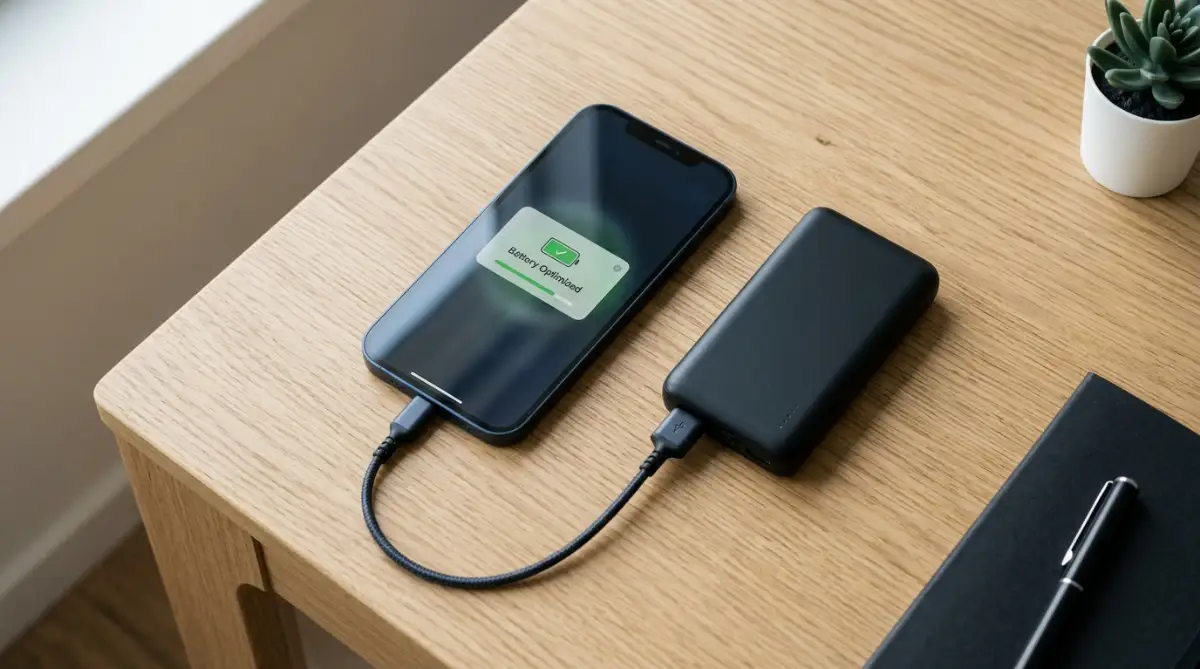 The first thing you need to realize is that "Background App Refresh" is often the main culprit. Think of this as the engine of your car running while you are parked at a red light. It consumes fuel, but you are not actually moving anywhere. Many apps, especially social media and shopping apps, love to stay "awake" in the background so they can update their content the second you open them. This is convenient, but is it worth the battery cost? Probably not.
To start fixing this, go into your settings menu. Look for the "Battery" or "General" section. You will likely see an option specifically for "Background App Refresh." You do not need to turn it off for everything. That would be a headache. Instead, be selective. Go through the list and toggle off the apps you do not need to have instant updates for. Do you really need your fitness tracker or your food delivery app checking for data every five minutes? Probably not.
Managing Location Services for Better Power
Location services are another major energy hog. GPS is a high-power feature. It has to connect to satellites and use your cellular data to pinpoint exactly where you are. Some apps, like weather apps or maps, obviously need this. But why does your flashlight app or your calculator app need to know your location? They do not.
Check your "Privacy" or "Location Services" settings. You will see a list of apps that have permission to track you. Change them from "Always" to "While Using" or "Never." You will be surprised by how many apps are tracking you in the background without any real reason. Restricting this access saves a massive amount of power over the course of a day.
The Truth About Screen Brightness
We all love a bright, crisp screen. It looks beautiful. However, your display is the largest consumer of battery power on your device. Having your screen at 100% brightness is like leaving all the lights on in your house when you are only sitting in the living room. It is a waste.
Most phones have an "Auto-Brightness" feature. You should definitely use this. It adjusts to your surroundings. If you are in a dark room, it dims. If you are outside in the sun, it brightens. Also, consider using "Dark Mode" if your phone has an OLED screen. This mode turns off individual pixels for black areas of the screen. Since those pixels are literally turned off, they consume zero power. It is a simple switch that makes a big difference.
Stopping the Notification Overload
Notifications are designed to grab your attention, but they also wake up your phone every single time they pop up. If your phone is in your pocket and it buzzes fifty times an hour, that is fifty times your screen and processor had to wake up. That constant "waking up" process drains battery fast.
Go into your notifications settings. Disable notifications for apps that are not important. You do not need an alert for every single "like" on a social media post or every minor game update. Keep notifications turned on only for things that really matter, like messages from family or work emails. Your phone will stay in "sleep mode" much longer, and your battery will thank you for it.
Pro Tip: I realized a while back that my email app was set to "Push" notifications. This meant my phone was constantly checking the server for new mail every few seconds. I changed this to "Fetch," which means the phone only checks for new emails every thirty minutes or even once an hour. This one small change stopped my battery from plummeting during the workday. I still get my mail, but on my terms.
Simplifying Your Synchronization Settings
Many of us have our phones syncing with the cloud—photos, notes, contacts, and app data. This is great for backups, but it often happens over cellular data. Syncing heavy files like high-resolution videos or large photo collections takes a lot of power and data.
Check your "Accounts and Sync" settings. Make sure that large file syncing is restricted to when you are connected to Wi-Fi. It is much more efficient for your phone to sync when it is plugged into a charger or on a stable Wi-Fi connection. It stops your phone from struggling to maintain a heavy data connection while you are out and about.
Want to see these settings in action? Check out this video guide below where I walk through my own device to show you exactly how to toggle these features for maximum battery life:
Video Guide: How to Optimize Your Smartphone Settings for All-Day Battery Power
Why Regular Maintenance Matters
My Daily Battery Routine:
Before I put my phone on the charger, I do these three quick things:
-
Clear Tabs: Swipe away apps I haven't used in 4+ hours (unless they are essential like messaging).
-
Toggle Connections: If I'm home, I make sure Wi-Fi is on and cellular data is off.
-
Brightness Check: Set it to 60% if I'm indoors to save the display drain.
Maintaining your battery is not just about disabling things. It is about how you treat your device daily. Many people leave their phones plugged in all night, every single night. While modern phones are smart enough to stop charging when full, keeping them at 100% constantly can be stressful for the battery chemistry over time.
Try to keep your battery between 20% and 80%. This "sweet spot" helps the battery last longer in the long run. If you know you are going to be away from a charger, you can charge it fully before you leave, but try not to make it a daily habit if you do not need the full capacity. It is a small habit that pays off.

Myth vs. Reality: Should You Keep Closing Apps?
Many people believe that constantly force-closing apps from the task switcher helps their phone save battery. I used to do this myself, swiping away apps whenever I finished using them. But it turns out that this habit isn't always helpful.
Modern smartphones are designed to manage background apps and memory automatically. When an app is suspended, it usually uses little or no processing power. Reopening an app you force-closed may require it to reload data and perform extra work, which can sometimes consume more battery.
So, instead of closing every app out of habit, let your phone manage them. Force-close an app when it freezes, stops responding, or behaves unusually. If your battery drains quickly, check your battery settings to identify apps that are consuming excessive power in the background. A little less micromanagement can make everyday phone use easier.
Connectivity Matters
Think about your connection settings. If you are in an area with very poor cellular service, your phone will work double-time, constantly scanning for a stronger signal. It will increase its transmission power, which burns through your battery life incredibly fast.
If you know you are going to be in a "dead zone" for a while, like on a long flight or in a basement, just switch your phone to "Airplane Mode." You are not going to get a signal anyway, so why let your phone struggle to find one? It saves a surprising amount of power and keeps your phone ready to go when you are back in a service area.
Keeping Your Software Updated
This might sound counter-intuitive, but keeping your phone’s operating system updated is helpful. Sometimes, manufacturers release updates specifically to fix battery drain bugs. If you have been ignoring those "System Update" notifications, consider installing them when you have the chance.
However, do be careful with major OS upgrades if you have a very old phone. Sometimes, newer software is optimized for newer hardware. If you have an older device, a quick search online to see if others are experiencing battery issues with the update is a smart move before you click install.
Small Habits for Big Results
I know it seems like a lot to manage, but you do not have to do this all at once. Pick one or two of these tips and try them for a few days. You will start to notice that your phone is not getting as hot, and the battery percentage is not dropping as aggressively.
It is about finding a balance. You want your phone to be useful, but you also want it to be reliable. When you stop your phone from doing things you do not need, you regain that reliability. You stop checking the battery percentage every ten minutes, and you get back to actually using your phone for the things that you enjoy.
Final Thoughts on Battery Management
Taking care of your smartphone battery is not about being paranoid. It is about being efficient. Most of the battery-draining issues we face are caused by settings we never even touched—defaults that are meant to prioritize convenience over power efficiency. By taking just a few minutes to adjust these settings, you make your phone a much more dependable companion.
We rely on our phones for everything today. From navigation to communication to entertainment. When the battery works, everything is smooth. When it fails, everything comes to a halt. By disabling the unnecessary background noise and optimizing how your phone interacts with its environment, you are not just saving battery. You are saving your own peace of mind.
Start with the location services and background refresh settings today. Those two alone usually account for the biggest improvements. Then, move on to notification management. Once you get these under control, you will find that you are no longer living in constant fear of the dreaded one-percent mark. You will have a phone that works for you, not against you.
Remember, these devices are here to serve us. A little bit of setup now will save you a lot of trouble later. Go ahead and take a look at your settings. You might be surprised at what you find running in the shadows. Your battery is waiting for that relief, and your day is about to get a whole lot less stressful.
Beyond the Basics: Pro-Level Battery Optimization
We have already covered the standard settings that help save battery power. Now, let’s look at the hidden areas of your operating system. These are the deeper tweaks that experienced users utilize to squeeze every last drop of performance from their devices. I have spent years refining my own setup, and these adjustments made a genuine difference in how long my phone lasts during a busy day.
Unlocking Developer Options for Better Control
Many people do not realize that their phones come with a hidden menu specifically for power users. By accessing the developer mode on your Android device, you gain access to settings that normal menus hide. Once you activate this, you can adjust the "Background Process Limit." This setting tells your phone exactly how many apps can stay active in the background at one time.
If you set this limit to a lower number, your phone will automatically kill off excess processes that are clogging your memory. This is a powerful way to stop apps from silently running when you are not using them. It keeps your processor idle more often, which is exactly what you want for battery health. However, be careful not to set it to "zero processes," or your phone will start closing apps that you actually need.
The Hidden Cost of Permission Abuse
We often install apps and blindly click "Allow" on every permission request without thinking twice. This is a massive mistake. Every time an app asks for permission to track your location, access your microphone, or sync data, it creates a potential background task. Why you should stop granting unnecessary permissions to newly installed apps is a lesson I learned the hard way after seeing my battery drain overnight by twenty percent.
Go into your app management settings and audit every single application. If you have a weather app, does it really need to access your contacts? Does a photo editor need constant access to your cellular data? Revoking these unnecessary permissions prevents the app from "waking up" your phone’s internal components. It is a simple administrative task that significantly reduces the load on your hardware.
Automating for Efficiency
Sometimes the best way to save battery is to let your phone do the work for you. Many people struggle with manual settings because they forget to toggle things back on. You can bridge the professional skill gap by mastering basic automation tools on your phone. For example, you can set up "modes" or "routines" that trigger automatically.
My phone is set to turn off Wi-Fi and Bluetooth automatically when I leave my home Wi-Fi range. It then switches to mobile data only when n