
The Hidden Frustration of a Slow Smartphone Experience
The Speed-Up Cheat Sheet
Don't have time to read everything? Here is how to fix your phone in 5 minutes:
- Unlock Developer Options: Tap 'Build Number' 7 times in 'About Phone'.
- Kill the Lag: Set Window/Transition/Animator scales to 0.5x.
- Optimize RAM: Limit background processes if your phone is older.
- Safety First: Only change settings you understand—don't touch 'OEM Unlocking'.
Your phone shouldn't feel like a chore. If you’re tired of the lag, the stuttering, and the constant "app not responding" pop-ups, you aren’t alone. Most people assume their hardware is dying, but usually, it's just poorly configured software. You don't need to spend money on a new device; you just need to unlock the hidden settings your manufacturer kept tucked away. Let's fix your phone's speed today.
I know how it feels when you see that "App is not responding" box. It makes you want to throw the phone against the wall. Most people think they need to buy a new phone. They think their hardware is old and tired. But often, the problem is just how the software is "breathing."
Your Android phone is like a high-performance engine that has been restricted by the factory settings. These restrictions are there for "safety," but they often hold you back. You don't need a new device. You just need to open the hood and tweak the right valves.
We are going to stop the lag together. We will find those hidden menus that the manufacturers don't talk about. By the end of this, your phone will feel snappy, responsive, and ready for action. Let's reclaim your digital peace of mind.
Getting Behind the Scenes: How to Enable Your Secret Menu
The first thing you need to know is that your phone has a secret control room. It is called Developer Options. By default, Google hides this menu. They do this so regular users don't accidentally break something.
But you are not a regular user. You are someone who wants the best out of their tech. To find this menu, you don't need to download any sketchy apps. Everything is already inside your phone.
Go to your Settings and scroll all the way down to About Phone. Look for something called the Build Number. It might be under "Software Information" on some phones. Now, here is the magic trick. Tap that Build Number seven times.
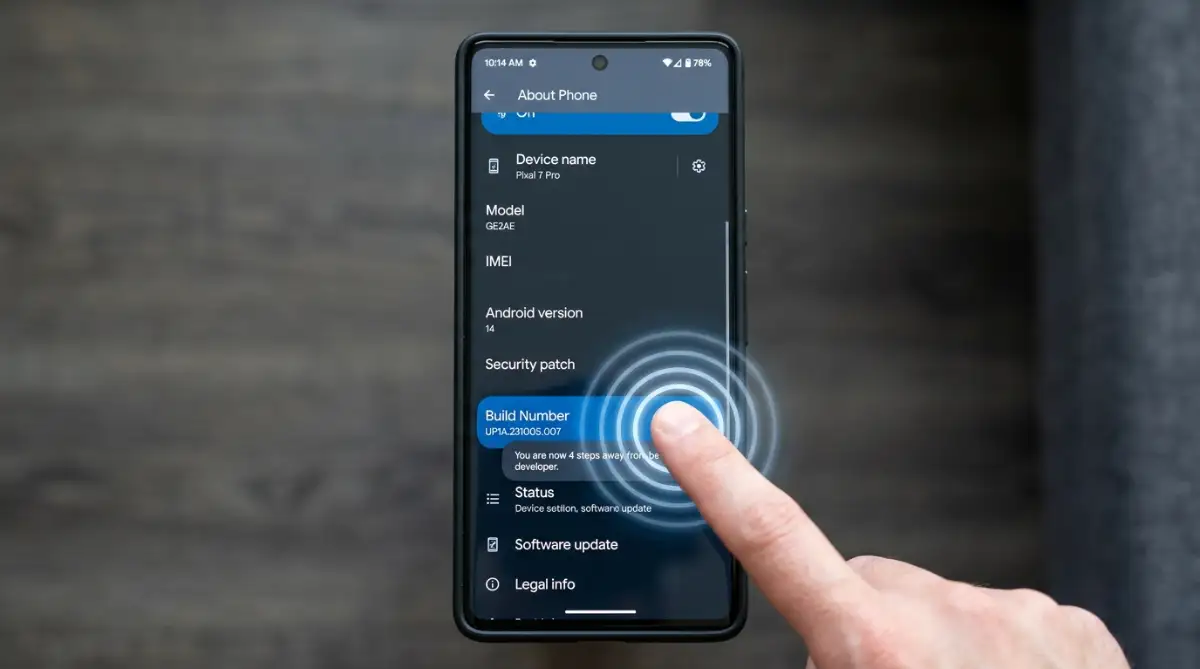
After a few taps, you will see a small message saying "You are now X steps away from being a developer." Keep going until it says "You are now a developer!" You might have to enter your lock screen PIN to finish the process.
Now, go back to the main Settings page. Look under System or search for Developer Options. You have just unlocked the hidden brain of your Android device. This is where the real performance work begins.
Speeding Up the Visuals: The Animation Trick
One of the biggest reasons a phone feels "slow" is not the processor. It is the animations. Every time you open an app or switch screens, Android plays a pretty little animation. These animations look nice, but they take time.
In the Developer Options menu, scroll down until you see three specific settings. They are usually grouped together. They are:
- Window animation scale
- Transition animation scale
- Animator duration scale
By default, these are all set to 1x. This means the phone is programmed to take a specific amount of time to show you the movement. If you want an instant boost, change all three of these to 0.5x.
If you want your phone to feel lightning fast, you can even turn them Off. I personally prefer 0.5x because it keeps a bit of the smoothness while cutting the wait time in half. Boldly change these settings and try opening an app. You will notice the difference immediately.
Forcing the Hardware to Work Harder
Your phone already has a dedicated graphics processor, or GPU, that handles many of the visual tasks on the screen. In some situations, changing how Android uses the GPU can affect how smoothly certain apps or animations run. However, these settings are not guaranteed to make every phone faster.
On some older Android versions, you may find an option called Force GPU Rendering in Developer Options. It was designed to make certain 2D drawing tasks use the GPU instead of relying mainly on the CPU. Another setting, Disable HW Overlays, changes how Android handles screen composition. It can sometimes help with specific display or rendering issues, but it can also increase GPU usage, so it is not a setting you should enable simply because it sounds faster.
You may also come across Force 4x MSAA. This enables multi-sample anti-aliasing in supported OpenGL ES 2.0 apps, which can make edges in some games look smoother. The difference is usually more noticeable in certain older or compatible games rather than across the entire phone interface.
There is a trade-off, though. Making the GPU work harder can increase power consumption and, in some cases, cause the phone to produce more heat. That can be especially noticeable during gaming.
If you are experimenting with these settings, change one option at a time and see how your phone actually responds. If you notice higher battery drain, extra heat, graphical problems, or no meaningful improvement, simply turn the setting back off. The best Developer Options settings are the ones that solve a specific problem on your particular device—not the ones that happen to sound the most powerful.
Managing Your Memory Like a Pro
Android is very good at managing RAM, but it isn't perfect. Sometimes, too many apps stay active in the background. They eat up your resources and slow down the app you are actually trying to use.
Scroll down to the Apps section of the Developer Options. You will see a setting called Background process limit. Usually, this is set to "Standard limit."
If you have an older phone with less RAM, try changing this to "At most 2 processes" or "At most 3 processes." This tells the system to kill off older background apps more quickly. It keeps your current app running at full speed.
Also, look for the "Don't keep activities" toggle. Use this with caution. If you turn this on, every app closes the second you leave it. This is great for speed but can be annoying if you like to multi-task. I suggest keeping this off unless your phone is very old and struggling.
Boosting Your Internet and Bluetooth Response
Performance isn't just about how fast an app opens. It is also about how fast your phone talks to the world. Developer Options has hidden tweaks for your connectivity too.
Look for "Tethering hardware acceleration." Make sure this is turned on. It uses dedicated hardware to handle your mobile hotspot, which saves battery and increases speed.
Another great one is "Enable Wi-Fi Verbose Logging." While this sounds technical, it helps your phone show more detail about Wi-Fi signal strength. This allows the device to switch to a better connection faster.
For music lovers, look at the Bluetooth Audio Codec settings. If you have high-quality headphones, you can manually select a better codec like LDAC or aptX HD. This ensures you are getting the best sound speed and quality possible from your hardware.
Why These Settings Can Make a Difference
You might wonder, “If these settings can make a phone feel faster, why aren’t they turned on by default?” The main reason is that phone makers have to design their software to work well for a huge range of users and devices.
Companies such as Samsung, Google, and Xiaomi have to balance several things at once, including performance, battery life, stability, and how the interface looks and feels. So the default settings are generally designed to provide a reasonable experience for most people rather than maximize speed at all costs.
Developer Options give you a little more control over that balance. For example, reducing animation effects can make the interface feel quicker because there is less visual movement between screens and menus. If you prefer a more responsive feel and don't care much about fancy transitions, changing these settings may make sense.
The important point is that your phone isn't suddenly gaining extra processing power. Instead, you're changing how some of its existing resources are being used. Less time spent rendering certain visual effects can sometimes make the phone feel more responsive, especially on older or less powerful devices.
Myth vs. Reality: What Developer Options Won't Do
It is important to stay grounded. While these tweaks are powerful, they are not magic. Let's clear up some common misconceptions.
Myth: Developer Options will overclock my CPU.
Reality: No. It won't make your processor run at a higher clock speed. It only makes the software more efficient.
Myth: Turning these on will void my warranty.
Reality: Absolutely not. These are built-in system settings. You are not "rooting" or "hacking" the phone.
Myth: I can't break my phone in this menu.
Reality: You can make things annoying. If you touch settings like "USB Debugging" or "OEM Unlocking" without knowing what they do, you might face some issues with certain apps or security. Always stick to the settings we discussed here.
Expert Insight: The Golden Rule of Tweaking
Whenever you change something in the hidden menu, do it one by one. Don't go in and change ten settings at once. If you do that and your phone starts acting weird, you won't know which setting caused it.
Change the animation scales first. Use your phone for an hour. See how it feels. If you like it, go back and try the background process limit. This "slow and steady" approach ensures you find the perfect sweet spot for your specific device model.
Every phone brand handles these settings a bit differently. A Pixel might react differently than an Oppo or a OnePlus. Trust your hands and your eyes. If it feels faster, it is faster.
Preparing for the Next Level of Performance
We have covered the basics of speed and responsiveness. We have trimmed the fat off the animations and optimized how the CPU and GPU work together. But there is more to explore.
In the next part of our guide, we will talk about deep system monitoring. We will look at how to track which apps are stealing your RAM in real-time. We will also discuss how to handle "Logger buffer sizes" to reduce lag in audio and touch response.
Your phone is no longer just a locked box. It is a tool that you are learning to master. The feeling of a fast phone is a feeling of control. No more waiting for icons to load. No more jittery scrolling.
Keep exploring these menus carefully. You are already ahead of 90% of Android users. Your device is now tuned for performance, and you did it all by yourself without spending a single penny.
Going Deeper: Tuning Your Phone Like a Master
We have already touched on the basic speed hacks. Now, I want to take you into the deeper layers of your Android system. Think of this as moving from simple car maintenance to high-end engine tuning. These steps are for people who want every ounce of power from their device.
One setting many people ignore is the Logger Buffer Size. This sounds like something only a computer scientist would care about, but it impacts how your phone handles data. By default, it is usually set to a low value like 256K or 64K.
If you notice a slight "hiccup" when streaming music or playing games, try increasing this to 1M or 4M. This gives your phone more room to store data before it processes it. It can reduce stuttering in audio and make your internet feel a bit more stable. However, if you are a hardcore competitive gamer, some experts suggest turning it Off to reduce input lag. Try both and see which one fits your playstyle.
Another hidden gem is the System Tracing menu. You can find this inside the Developer Options. It is a diagnostic tool that records how your phone's processor works. While you don't need to read the technical logs, turning on "Long-running traces" can sometimes help the system learn which apps are slow.
More importantly, look for the "Show Refresh Rate" toggle. If you have a modern phone with a 90Hz or 120Hz screen, turn this on. It will put a small number in the corner of your screen. This helps you see if your phone is actually running at its full speed or if it is dropping down to 60Hz and feeling laggy. If it stays low, you know an app is dragging your system down.
Speaking of apps, let's talk about Standby Apps. This is a deep list that shows you how Android categorizes every app on your phone. Apps are put into "buckets" like Active, Working Set, Frequent, or Rare.
If you see an app you barely use marked as "Active," it is eating your battery and RAM. You can manually change its state to "Rare."
Is your app 'Rare' or 'Active'?
If you want to save battery and boost speed, identify your app usage with this simple rule:
- Active: Maps, Music, Messaging. (Keep these!)
- Frequent: Browsers, Social Media you check daily.
- Rare: Shopping apps, Games you haven't played in weeks. -> Set these to 'Rare' immediately!
This tells the system to only give that app resources when you specifically open it. It is a manual way to take back control of your phone's memory. This kind of optimization is a great way to save money because it extends the life of your current device. Instead of buying a new phone every two years, you can make your current one last four or five. This is a smart financial move, similar to how to build a fail-safe emergency fund without losing your lifestyle, as it keeps your cash in your pocket for things that truly matter.
Tracking Your Graphics Performance in Real Time
If you have ever felt that your screen transitions are not smooth, you should check out the GPU Rendering Profile. This is a very cool visual tool. When you turn it on, you will see colorful bars at the bottom of your screen.
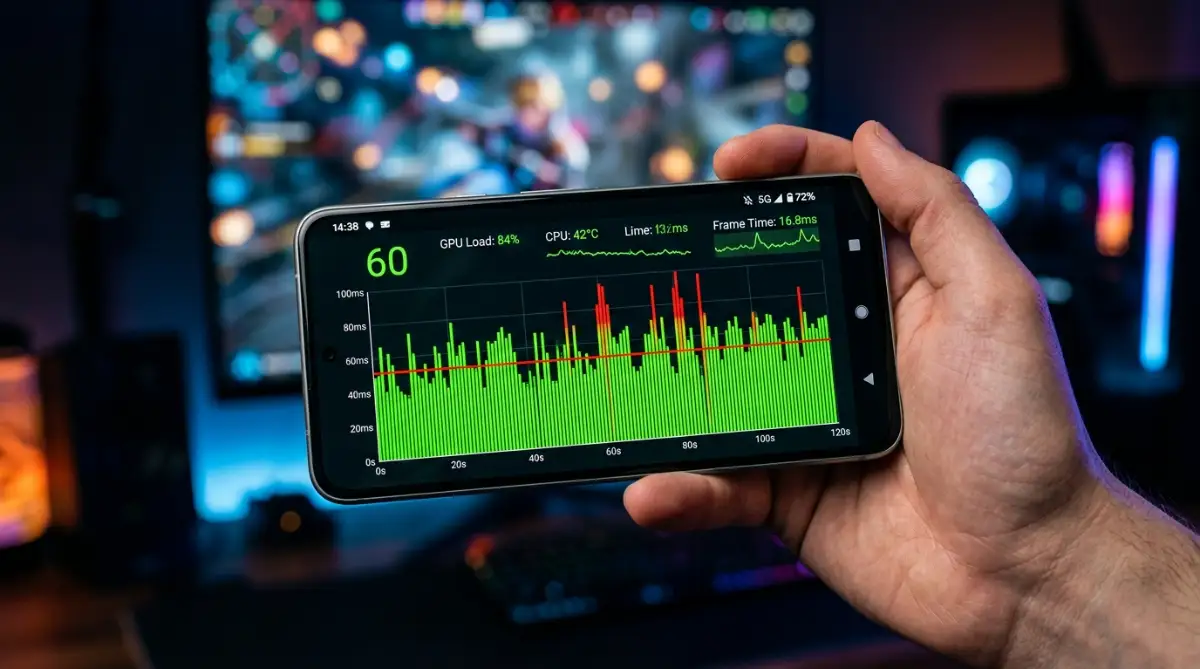
Each bar represents a frame of animation. If the bars stay below the green line, your phone is running perfectly. If they spike up, it means your phone is struggling to draw that specific part of the screen.
I use this to find out which apps are poorly coded. If a social media app causes huge spikes every time I scroll, I know that app is the problem, not my phone. Knowing this helps you decide which apps to keep and which ones to delete. For more technical details on how graphics rendering works in mobile systems, you can look at the official Android Graphics Documentation which explains the pipeline in detail.
There is also a setting called "Disable USB Audio Routing." This is usually for people using external sound cards. But if you have issues with your phone not recognizing your headphones correctly, toggling this can sometimes fix the connection.
Lastly, look at the "Default USB Configuration." Do you find it annoying that your phone only charges when you plug it into a PC? You can change the default to "File Transfer." Now, every time you plug it in, your computer will immediately show your folders. It saves you three taps every single time. It is a small change, but these "quality of life" tweaks add up to a much better user experience.

The Dark Side of Tweak Culture: Common Pitfalls
I have seen many people get excited and start flipping every switch they see. This is the biggest mistake you can make. Developer Options are powerful, but they can also make your phone act very weirdly if you are not careful.
One big mistake is turning on "Show Surface Updates" or "Show Layout Bounds." Suddenly, your screen starts flashing pink or drawing red lines around every button. Many people panic and think their screen is broken. It isn't broken; you just turned on a visual debugging tool. If this happens, don't worry. Just go back into the menu and turn those specific toggles off.
Another dangerous area is "USB Debugging." While it is necessary for some advanced tools, leaving it on all the time can be a security risk. If you lose your phone and someone plugs it into a laptop, they could potentially bypass your lock screen more easily. Only turn it on when you are actually using it, and turn it off when you are done.
The same goes for "OEM Unlocking." This is the first step to "rooting" your phone or installing a custom operating system. Unless you are a pro who knows exactly what a bootloader is, stay away from this button. If you accidentally wipe your phone while playing with this, you could lose all your photos and messages. This kind of data loss is a nightmare that no one wants to face. It is similar to how a small mistake can lead to big problems in other areas of life, like why home insurance companies deny claims and how to stay protected if you don't follow the right steps.
I also see people messing with the "Smallest Width" setting. This changes the DPI of your screen. If you set the number too high, all your text and buttons will become tiny. If you set it too high, you might not even be able to see the "Apply" button to fix it. If you want to change your screen size, do it through the regular "Display" settings first. Only use this hidden setting if you need a very specific look and you are making very small changes (like 10-20 points at a time).
The "Everything is Broken" Panic
What happens if you change so many things that you can't remember what the original settings were? I have been there. Your phone starts behaving strangely, apps close randomly, and the colors look off.
The good news is that you have a "Reset" button. At the very top of the Developer Options screen, there is a master toggle. If you turn it Off, the entire menu is deactivated, and almost every setting goes back to the factory default.
Taking Charge of Your Digital Life
Optimizing your phone is about more than just speed. It is about making your most-used tool work for you. We spend hours every day looking at these screens. If we can save even one second every time we open an app, we are saving minutes every day. Over a year, that is hours of your life given back to you.
You have now learned how to find the secret menu, speed up your animations, manage your hardware, and avoid the traps that trap others. You are no longer at the mercy of the default settings. You are the boss of your own technology.
Start with the animation scales today. It is the easiest win. Then, as you get more comfortable, try the background process limits or the logger buffer tweaks. Observe how your battery lasts and how your apps feel.
If you use your phone for work or running a small company, these speed boosts can help you stay productive. It keeps your workflow smooth and professional. If you are worried about other risks in your professional life, you might also want to learn how to shield your small business assets from legal risks. Being prepared and having your tools optimized is the key to success.
Your Path to a Lag-Free Future
You don't need to be a tech genius to have a fast phone. You just need the curiosity to look where others don't. The settings we discussed are hidden for a reason, but now they are open to you.
I want you to go to your phone right now. Open those settings. Make those changes. Feel the difference when you swipe home or open your messages. It feels like a brand new device, doesn't it?
That "new phone feeling" is just a few taps away. You have the knowledge now. Use it to make your digital life easier and faster. Your phone is a powerful computer, and you have finally unlocked its true potential. Enjoy the speed!
Disclaimer: The tips provided in this guide are for educational purposes. While Developer Options are built into Android, changing certain settings may affect battery life, app stability, or system security. Always proceed with caution and remember that you can reset these settings at any time by toggling the Developer Options master switch to 'Off'. We are not responsible for any data loss or hardware issues caused by improper use of these hidden settings.
Thank you for reading. At Finliora, our mission is to provide accurate, practical, and trustworthy information to help you make informed decisions with confidenc