Why Your Computer Feels Like It Is Walking Through Mud
There is nothing worse than clicking a file and staring at a spinning cursor for ten seconds. You start wondering if you need to buy a brand-new laptop, but honestly, your machine is probably fine. It is just drowning in background noise, and I am going to show you how to clean that up right now.
This is not just a minor annoyance. It is a genuine thief of your time and your mental peace. I know how it feels when you are in the middle of an important task and the "blue spinning circle" appears.
Your heart sinks because you know your flow is broken. You start wondering if you need to spend a lot of money on a new computer. The frustration builds up until you just want to walk away.
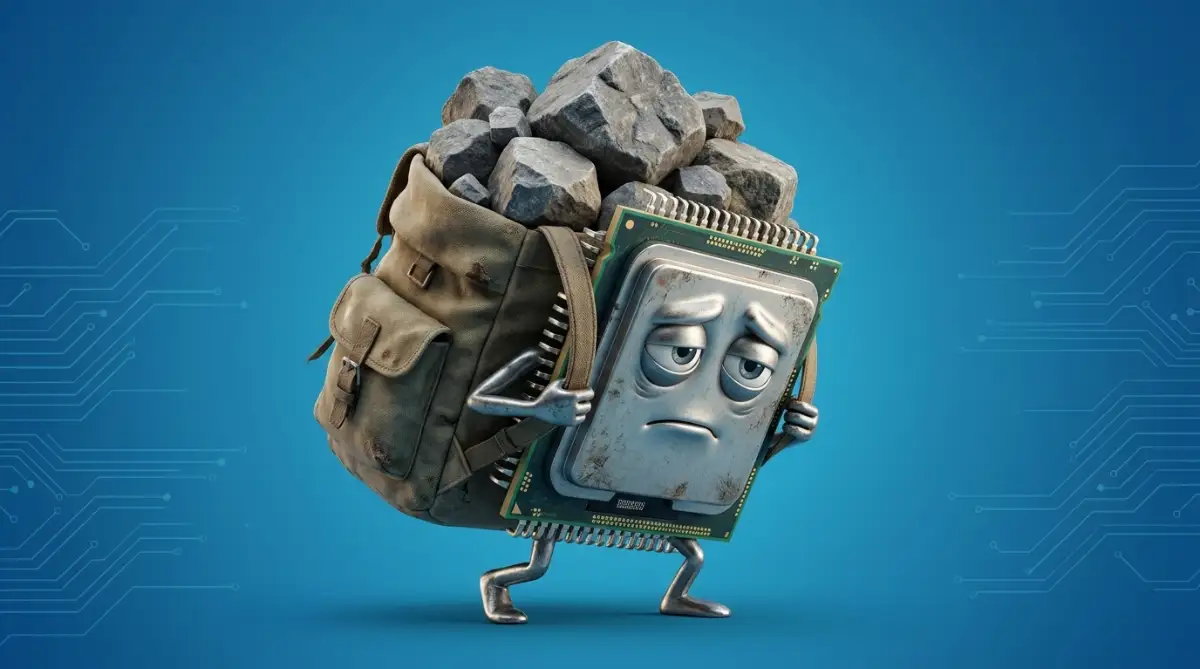
Many people face this every single day. They think their hardware is old, but often, the problem is hidden deep inside the software. It is like trying to run a marathon while carrying a backpack full of heavy rocks.
Those "rocks" are the background services that Windows runs without asking you. They take up your memory, eat your CPU power, and slow down everything you actually want to do.
It is time to stop the struggle. You do not need to be a computer genius to fix this. You just need to know which "rocks" to take out of your backpack.
Quick Wins: Speed Up Your PC Today
- Stop the Bloat: Disable startup apps in Task Manager that have "High" impact.
- Clean the Services: Use services.msc to turn off features like Print Spooler if you don't own a printer.
- Performance Mode: Change your Windows Power Plan to "High Performance" to stop the CPU from sleeping.
- Manual Clean Only: Avoid "Speed-up" apps; they often cause more lag than they fix.
Finding the Silent Performance
To fix the lag, we first need to look at what is happening under the hood. Windows is a complex house with many rooms. Some of those rooms are always running lights and heaters even when nobody is inside.
We want to turn off those unnecessary lights. This process starts with understanding the "Services" menu. This is the control room of your operating system.
Killers in Your System
To fix the lag, we first need to look at what is happening under the hood. Windows is a complex house with many rooms. Some of those rooms are always running lights and heaters even when nobody is inside.
We want to turn off those unnecessary lights. This process starts with understanding the "Services" menu. This is the control room of your operating system.
Accessing the Windows Services Manager
You can reach this by pressing the Windows Key + R on your keyboard. Type services.msc into the box and hit enter. A long list will appear.
If you want to see exactly how to navigate these menus without breaking your system, watch this simple video guide before you start making changes.
Do not let this list scare you. Most of these things are helpful, but several are just taking up space. We are looking for things that you personally do not use.
For example, if you do not own a printer, why is the "Print Spooler" service running? It is sitting there, using resources, waiting for a printer that will never come.
Managing the Connected User Experiences service
One of the biggest culprits for system lag is "Connected User Experiences and Telemetry." This service collects data about how you use Windows and sends it to servers.
While it sounds useful for the developers, it can cause small stutters in your system. If you want a leaner, faster machine, this is a great place to start.
Right-click on it, go to Properties, and change the "Startup Type" to Disabled. This stops the service from starting every time you turn on your PC.
Optimizing the Startup Flow for Instant Readiness
Think about your morning routine. If you had to cook a five-course meal before you could leave the house, you would always be late for work.
Your computer does the same thing. Many apps think they are so important that they need to start the moment you log in. This creates a massive traffic jam in your RAM.
Using the Task Manager Wisely
Press Ctrl + Shift + Esc to open the Task Manager. Click on the "Startup" tab. Here, you will see a list of apps that launch automatically.
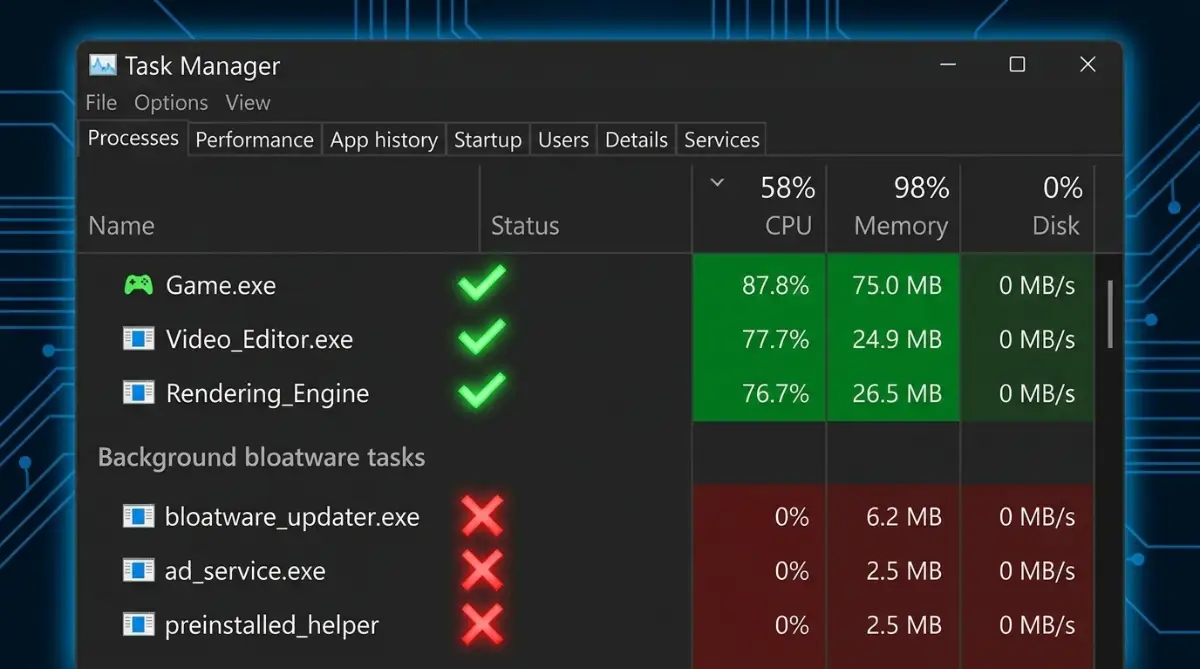
You might see things like game launchers, chat apps, or cloud storage tools. Each one of these adds seconds to your boot time and eats into your active performance.
Look for the column that says "Startup Impact." If an app says "High," it is a major reason for your system latency.
You can safely disable most of these. Disabling them here does not delete the app. It just means the app waits for you to click on it before it starts running.
Taking Control of Windows Search Indexing
Windows Search makes it easy to find files when you need them, but the indexing process can sometimes use more system resources than you might expect. This is especially noticeable on computers with slower or older hard drives.
If you regularly see your disk usage reaching 100%, Windows Search indexing may be one of the things contributing to the problem. The Indexer works in the background, scanning files and updating its index so that searches can return results quickly.
If most of your files are already organized into a few folders, there may be little benefit in having Windows constantly index every location on your computer. You can review and change these settings through Indexing Options in the Control Panel.
Removing folders that you rarely search can reduce unnecessary background activity. It may not solve every case of high disk usage, but it can make a noticeable difference on some systems—particularly when indexing is running frequently.
A good approach is to keep indexing enabled for the folders you actually use and remove locations that do not need to be searched regularly. This gives Windows less work to do in the background without completely giving up the convenience of Search.
The Role of SysMain and Your Disk Drive Type
Windows has a service called SysMain, which was previously known as Superfetch. Its basic job is to learn which apps you use regularly and preload some data so those apps can open more quickly.
On some older PCs with traditional hard disk drives (HDDs), SysMain can sometimes contribute to high disk activity, particularly when the computer is already under a heavy workload. That can make the system feel slower than usual.
Things are generally different with an SSD. Because SSDs handle data much faster than HDDs, SysMain isn't usually something you need to turn off simply because you have an SSD. Your overall system configuration and the cause of the slowdown matter more.
If your PC becomes unusually slow after startup, you can test whether SysMain is contributing to the problem instead of changing the setting permanently right away. Check Task Manager to see whether disk usage is unusually high, then compare the system's behavior after temporarily changing the service. If nothing improves, there's probabl
Managing Automatic Updates and Background Downloads
We all know the pain of a Windows Update starting at the worst possible time. It slows down your internet and your system speed all at once.
While updates are important for security, you should be the one in control of when they happen. You can go to "Windows Update Settings" and use the "Pause" feature or set "Active Hours."
This prevents Windows from starting a heavy download while you are in a video call or playing a game. Managing your bandwidth is just as important as managing your CPU.
Cleaning Up the Windows Store Apps
Many apps that come pre-installed with Windows run small processes in the background. Things like the Weather app, News, or Maps are always updating their data.
If you do not use these apps, they are just extra weight. You can go to "Privacy Settings" and then "Background Apps."
There is a simple toggle switch there. You can turn off the ability for these apps to run in the background. This is one of the easiest ways to gain back some system speed without any risk.
Why Less is Always More in System Optimization
We live in a world where we think adding more things will make our lives better. But with computers, the opposite is true. The less "noise" you have in your system, the better it performs.
Every service you disable is like clearing a branch off a blocked road. Eventually, the road is wide open, and the data can flow without hitting any obstacles.
I always recommend doing these steps one by one. Change one setting, use your computer for an hour, and see how it feels. This way, you learn exactly what was causing your specific lag.
Final Thoughts for This Stage
Optimizing a computer is a journey, not a single click. By taking these steps, you are moving from being a passive user to an active manager of your technology.
You will notice that your fans run quieter. Your laptop battery might even last a little longer. Most importantly, that feeling of frustration will turn into a feeling of control.
Digital Engine for Peak Performance
Now that we have covered the basics of managing your startup and stopping obvious services, it is time to look deeper. Think of your computer like a high-end car. You have already removed the extra weight from the trunk, but now we need to tune the engine itself.
To get that ultra-smooth feeling where every click feels instant, we have to explore settings that most people never touch. These tweaks do not just save a little bit of RAM. They change how Windows talks to your hardware.
When you get these right, the "input lag" disappears. Your mouse feels like it is physically connected to your thoughts. This level of responsiveness makes working on a computer much less tiring for your brain.
Adjusting the Power Profile for Instant CPU Access
By default, Windows tries to be a "green" operating system. It constantly tries to save power by slowing down your processor when you are not doing heavy work. While this is good for a light bulb, it is bad for system latency.
When you click a button, the CPU has to "wake up" from a low-power state. This creates a tiny delay of a few milliseconds. You might not see it, but you definitely feel it as a lack of "snappiness."
To fix this, search for "Choose a power plan" in your Start menu. Change your setting to High Performance. This tells Windows to keep the CPU ready at all times.
If you are on a desktop, this is a no-brainer. For laptop users, it might drain your battery a little faster. However, the trade-off is a much more consistent experience. Much like how to build a fail-safe emergency fund without losing your lifestyle, managing your computer’s resources is all about making smart choices today for a better future.
Optimization Through Visual Performance Tuning
Windows spends a lot of resources making things look pretty. It adds shadows under your mouse, blurs the background of windows, and uses animations when you minimize a program.
Every one of these animations uses a tiny bit of your GPU and CPU power. If you want the fastest possible response, you should turn these off.
Go to "View advanced system settings" in the control panel. Under the Performance section, click Settings. Choose the option "Adjust for best performance."
Suddenly, your windows will snap open and shut instantly. There is no more "sliding" or "fading" effect. It feels raw and incredibly fast. You are removing the "makeup" from the OS so it can focus on actual work.
The Secret of Hardware Accelerated GPU Scheduling
If you have a modern graphics card, there is a hidden setting that can help reduce system lag. It is called Hardware-Accelerated GPU Scheduling.
Normally, the CPU has to manage all the data going to your graphics card. This creates a bottleneck. When you turn this setting on, the GPU manages its own memory.
This takes a huge load off your CPU. You can find this under "Graphics Settings" in your Windows display menu. Turn it on and restart your PC. You will likely notice that moving windows around feels much smoother than before.
According to technical benchmarks from Microsoft’s official hardware documentation, this feature significantly reduces the overhead on the system processor. It allows the machine to stay calm even when you have many apps open.
Fine-Tuning the Registry for Network and System Response
The Windows Registry is the brain of the system. Most people are afraid to touch it, but a few small changes can make a big difference.
One area to look at is the "Network Throttling Index." Windows sometimes limits network speed to prioritize system tasks. You can tell Windows to stop doing this.
Open regedit and navigate to HKEY_LOCAL_MACHINE\SOFTWARE\Microsoft\Windows NT\CurrentVersion\Multimedia\SystemProfile. Look for NetworkThrottlingIndex.
If you change this value to ffffffff (hexadecimal), it disables the throttling. This makes your internet feel a bit more responsive during heavy use.
Always remember to back up your registry before making changes. Managing your digital settings is a lot like how to shield your small business assets from legal risks. You must take the right precautions to stay safe while seeking better results.

The Ghost in the Machine: Why "Cleaners" Often Fail You
One of the biggest mistakes people make is trusting "One-Click Speed Up" software. You have seen the ads. They promise to find 5,000 errors on your PC and fix them for a small fee.
In reality, these programs often do more harm than good. They often delete registry keys that are actually needed. They might stop services that are essential for your printer or your Wi-Fi to work.
I have seen many people end up with a broken Windows installation because they used a "PC Booster." These tools often stay running in the background themselves, which ironically slows down your computer even more.
If a program tells you it can fix your PC in ten seconds, it is usually not telling the whole truth. Real optimization takes a manual, thoughtful approach.
Understanding why these "solutions" fail is as important as knowing why home insurance companies deny claims and how to stay protected. You need to see through the marketing and look at the actual facts.
The Danger of Disabling Critical Heart Services
In our search for speed, it is easy to get carried away. You might see a service with a strange name like RPC Endpoint Mapper and think, "I don't need that!"
Stop right there. Some services are the literal heartbeat of your computer. If you disable the wrong thing, your computer might not turn on at all next time.
Never disable services related to:
- Remote Procedure Call (RPC): Everything in Windows relies on this.
- Windows Installer: You won't be able to add or remove apps.
- User Profile Service: You will be locked out of your own account.
If you are not 100% sure what a service does, leave it alone. The goal is to have a fast PC, not a broken one. Use a trusted resource like the BleepingComputer Service Database to check what a specific process does before you kill it.
Forgetting to Maintain the Physical Side of Tech
We spend so much time talking about software that we forget about the hardware. If your computer is full of dust, it will get hot.
When a computer gets hot, it performs "thermal throttling." This means it intentionally slows down to prevent the chips from melting.
No amount of registry tweaks or service disabling will fix a dusty fan. Every few months, use a can of compressed air to clean out your vents.
A cool computer is a fast computer. If your fans are screaming like a jet engine, that is your PC's way of asking for help. Listen to it.
Keeping Your Drivers in Harmony
Another common pitfall is using outdated drivers. Your hardware and software need to speak the same language.
If your motherboard drivers are from three years ago, they might not know how to handle a new Windows update efficiently. This causes "Interrupt Storms" where the CPU gets confused by conflicting signals.
Check your manufacturer's website directly. Avoid those "Driver Updater" apps that install bloatware. Clean, direct drivers from the source are always the best way to go.
Your Action Plan for a Snappy Future
You have worked hard to reclaim your computer’s speed. By now, your system should feel significantly more responsive.
The weight is gone. The lag is minimized. You have taken control of a tool that most people just use blindly.
This is a great feeling, isn't it? Knowing that your computer is working for you and not against you. You no longer have to wait for the machine to catch up with your thoughts.
Start using your computer today with this new setup. Notice the small things. Notice how folders open instantly. Notice how the mouse feels "connected."
Staying Fast for the Long Haul
Optimization is not something you do once and forget. Windows will try to sneak new services into your system with every big update.
Make it a habit to check your Startup tab once a month. Keep your desktop clean. Don't let "temp files" build up until they choke your drive.
A clean digital environment leads to a clean mental environment. When your tools work perfectly, you can focus on your creativity, your business, or your hobbies without any distractions.
You have the knowledge now. You have the "Expert" settings. Go ahead and enjoy the fast, fluid experience you deserve. Your PC is finally ready to perform at its true potential.
Disclaimer: The technical steps described in this article involve modifying system settings and the Windows Registry. While these tips are designed to improve performance, they should be performed with caution. Always create a System Restore point before making advanced changes. The author and website are not responsible for any system instability or data loss resulting from improper configuration.
Thank you for reading. At Finliora, our mission is to provide accurate, practical, and trustworthy information to help you make informed decisions with confidence.