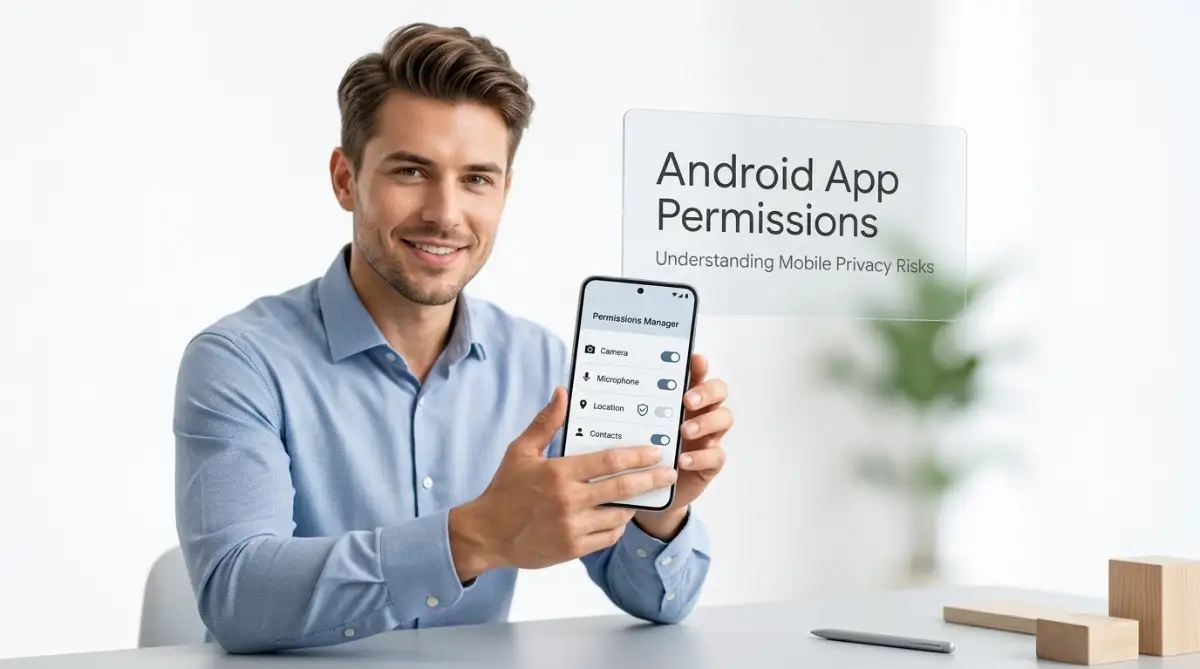
The Quiet Privacy Invasion Happening on Your Phone Every Day
Have you ever installed a simple flashlight app or a basic photo editor, only to find it asking to view your private contacts, read your text messages, and track your exact location?
You are definitely not alone in feeling uneasy about this. Millions of smartphone owners tap "Allow" every single day just to get past annoying pop-ups without realizing what they are giving away.
It starts with a subtle feeling of anxiety. You notice strange targeted ads for things you only talked about near your phone, or your battery starts draining faster than usual.
You begin to wonder if your personal photos, private chats, or bank details are truly safe on the device you carry everywhere.
That sinking feeling in your stomach is entirely valid. When you hand over full access to newly downloaded software, you may be opening a back door to your private life without knowing it.
Let us look closely at why this happens, how greedy developers exploit our trust, and what you can do right now to lock down your phone.
Why New Apps Demand Access They Simply Do Not Need
When you download an app from the app store, you expect it to do its main job and nothing more. A weather app should tell you if it will rain, and a calculator app should do basic math.
Unfortunately, many app developers design their software to gather as much user data as possible. Personal information is big business, and data brokers pay top dollar for detailed user profiles.
By requesting broad permission rights during installation, an app can silently gather background data long after you close it.
Understanding the Difference Between Necessary and Unnecessary Access
To protect your privacy, you need to understand why an application asks for specific features on your mobile device. Some requests are completely legitimate for normal operation, while others are huge red flags.
For example, a navigation app genuinely needs your GPS location to give you turn-by-turn driving directions. If that same navigation app demands access to your SMS text messages and photo gallery, something is wrong.
Here is a simple breakdown to help you spot suspicious requests quickly:
Myth vs Reality: Common Smartphone Privacy Misconceptions
Myth: "If an app is listed on the official Google Play Store, it is 100% safe and verified."
Reality: While official app stores scan for malware, thousands of apps still request legal permissions to harvest and sell your personal usage data.
Myth: "Apps only track my data when I am actively using them on my screen."
Reality: Unless you restrict background rights, many applications actively run trackers in the background 24 hours a day.
Myth: "I have nothing to hide, so granting access does not really hurt me."
Reality: Data leaks can expose your home address, daily habits, contact lists, and financial passwords to identity thieves.
Expert Privacy Tip: Always ask yourself one simple question before hitting "Allow": Does this specific feature make sense for what this tool actually does? If the answer is no, deny the request immediately.
The Big Four Dangerous Permissions You Should Audit Right Now
Not all permission settings carry the same level of risk to your personal security. Some settings only affect basic display options, while others hand over the keys to your digital life.
Let us review the four most sensitive permissions on Android devices and why you must monitor them carefully.
1. Camera and Microphone Access
Your camera and microphone are direct windows into your personal physical space. Granting unmonitored access allows malicious or poorly built applications to record video or capture audio without your knowledge.
Modern Android software displays a tiny green dot in the top corner of your screen when the mic or camera is active.
If you see that green indicator light up while using a simple offline utility app, open your security settings and turn off that access immediately.
2. Precise GPS Location Services
There is a huge difference between approximate location and precise GPS tracking. Approximate location tells an app which city you are in, which is fine for local news or weather updates.
Precise location tracks your exact street address, your place of work, and your daily routine down to the meter.
When apps track your precise location continuously, they create a permanent digital map of your life that could be exposed in a corporate data breach.
3. Contacts and Call Logs
Your contact list does not just belong to you; it contains private phone numbers, email addresses, and home details of your family, friends, and coworkers.
When an app uploads your contact book to remote servers, all those people are suddenly exposed to unwanted spam calls and marketing campaigns.
Never give a basic utility, game, or shopping application permission to view your contact list unless syncing contacts is the primary feature of the software.
4. Full Storage and Media Library Access
On older Android versions, granting storage permissions gave an application complete access to every photo, video, document, and download saved on your device.
Newer versions use special file pickers, but many apps still request broad access to your media gallery.
Private family photos often contain hidden metadata like exact GPS coordinates, camera details, and creation dates that compromise your real-world safety.
Real-Life Scenario: The Hidden Cost of "Free" Mobile Tools
Consider the real story of Mark, a busy office worker who downloaded a free PDF scanner app to send a quick document to his colleague.
The app popped up three permission requests right after launch: Camera, Storage, and Contacts. Mark tapped "Allow" on all three without reading because he was in a rush.
The PDF scanner worked fine, but behind the scenes, the app quietly uploaded Mark's entire address book to an offshore advertising server.
Within two weeks, Mark's friends began receiving convincing phishing text messages pretending to come from his name.
This exact situation happens every day to thousands of everyday smartphone users who treat permission prompts as harmless speed bumps.
Actionable Steps to Audit and Fix Your App Permissions Today
You do not need to be a technology wizard to secure your Android smartphone. Taking just five minutes to review your settings right now can boost your security immensely.
Follow these simple, practical steps to clean up your permissions and regain control over your personal information.
Step 1: Open the Android Permission Manager
Every modern Android device includes a built-in privacy dashboard designed specifically to manage access rights in one organized place.
- Open your phone Settings app.
- Scroll down and select Privacy or Security & Privacy.
- Tap on Permission Manager (sometimes called Permission Controller).
Here you will see a clean category list showing exactly how many installed applications have access to your Camera, Location, Contacts, and Microphone.
Step 2: Revoke Access for Non-Essential Applications
Go through each major category one by one and change settings for apps that do not require those features.
Select any app on the list and change its status from "Allowed all the time" to "Ask every time" or "Don't allow".
For location services, make sure to select "Use precise location" and toggle it OFF for general utility tools and games.
Step 3: Enable the "Remove Permissions If App Is Unused" Feature
Android includes a wonderful built-in feature that automatically revokes all permissions if you do not open an app for a few months.
To turn this on, tap on any individual app inside your Settings menu, scroll down to the bottom, and make sure the toggle switch for "Pause app activity if unused" is switched ON.
This simple toggle ensures that forgotten apps sitting on your home screen cannot silently collect data in the background.
Step 4: Stop Installing Apps from Unknown Third-Party Sources
While the Google Play Store is not perfect, downloading APK files from random websites or unverified forums drastically increases your risk of installing spyware.
Always keep the "Install unknown apps" setting disabled inside your phone security menu to prevent rogue installations.
Quick Summary Checklist for Mobile Privacy
- Audit your Location settings and turn off "Precise Location" for non-navigation apps.
- Restrict Microphone and Camera rights to "Only while using the app" or "Ask every time".
- Block basic games and simple utilities from reading your Contacts and SMS messages.
- Enable "Pause app activity if unused" for every newly downloaded tool.
- Check your Privacy Dashboard once every month to spot suspicious background activity.
Expert-Level Security Strategies to Lock Down Your Device
Taking basic control of your app permissions is a great first step, but modern mobile threats often require deeper security measures. Rogue software developers constantly find creative loopholes to bypass standard system warnings on your device.
If you want absolute peace of mind, you need to understand the hidden administrative permissions that sit deep within your phone software. These settings control background behavior, screen overlays, and deep system access that standard privacy menus usually hide.
Let us explore advanced strategies that keep your private information completely locked down for the long haul.
Master the Danger of "Display Over Other Apps"
One of the most dangerous settings on any mobile device is the permission to draw over other applications. Legitimate applications like chat heads or screen recorders use this feature to display helpful floating controls.
However, malicious applications abuse this exact permission to pull off deceptive overlay attacks. They display a invisible or fake transparent window right over your official banking app or social media login page.
When you type your password, you think you are logging into your secure account. In reality, you are typing your credentials directly into the rogue app running silently in the background.
To inspect this feature, go to your phone Settings, search for Special App Access, and tap on Display over other apps. Review this list carefully and revoke access for any tool that does not strictly require a floating screen interface.
Taming the "Accessibility Services" Loophole
Accessibility services are built to assist users with physical disabilities by reading screen text aloud or performing automated taps. Because of this intended function, Android gives accessibility services almost unlimited control over your entire device.
Unfortunately, bad actors target this entry point more than almost any other system feature. Once an untrusted application gains accessibility access, it can grant itself all other permissions automatically without your physical interaction.
Never grant accessibility access to an application unless it comes from a highly trusted developer and clearly requires it for essential operation.
-------------------------------------------------------------------+ | HIGH-RISK PERMISSION RED FLAGS | +-------------------------------------------------------------------+ | 1. Accessibility Service -> Can read full screen content & tap | | 2. Display Over Other Apps -> Can create fake password screens | | 3. Device Admin Apps -> Can prevent you from uninstalling | | 4. Install Unknown Apps -> Can download hidden malware files | +-------------------------------------------------------------------+
Unlocking System Diagnostics for Hidden App Behavior
If you suspect an application is secretly gathering data or draining your battery in the background, you can monitor its live performance using system-level tools.
You can gain deeper insights into active memory usage and system processes by learning how to access Android developer mode to speed up your phone and audit running background tasks.
Inside the developer options menu, you will find a tool called Running Services. This panel displays every active process running on your processor right now, along with exact memory consumption stats.
If a basic calculator or wallpaper app shows active background services that constantly run, you have caught a clear background tracker that should be uninstalled immediately.
You can also read the official Android developer security documentation to understand how proper permission isolation is built to keep your system safe.
Using Work Profiles and Built-in Privacy Cabinets
Modern mobile operating systems offer powerful isolation features like Work Profiles or Private Spaces. These built-in software tools allow you to isolate risky applications inside a digital sandbox.
Think of it like keeping strong household chemicals in a separate locked storage shed rather than on your kitchen counter.
When you install an application inside a isolated work profile, it cannot read your personal photo gallery, personal contact lists, or main storage files.
This is an ideal solution for corporate apps required by your employer or shopping tools that demand unnecessary permissions to function properly.
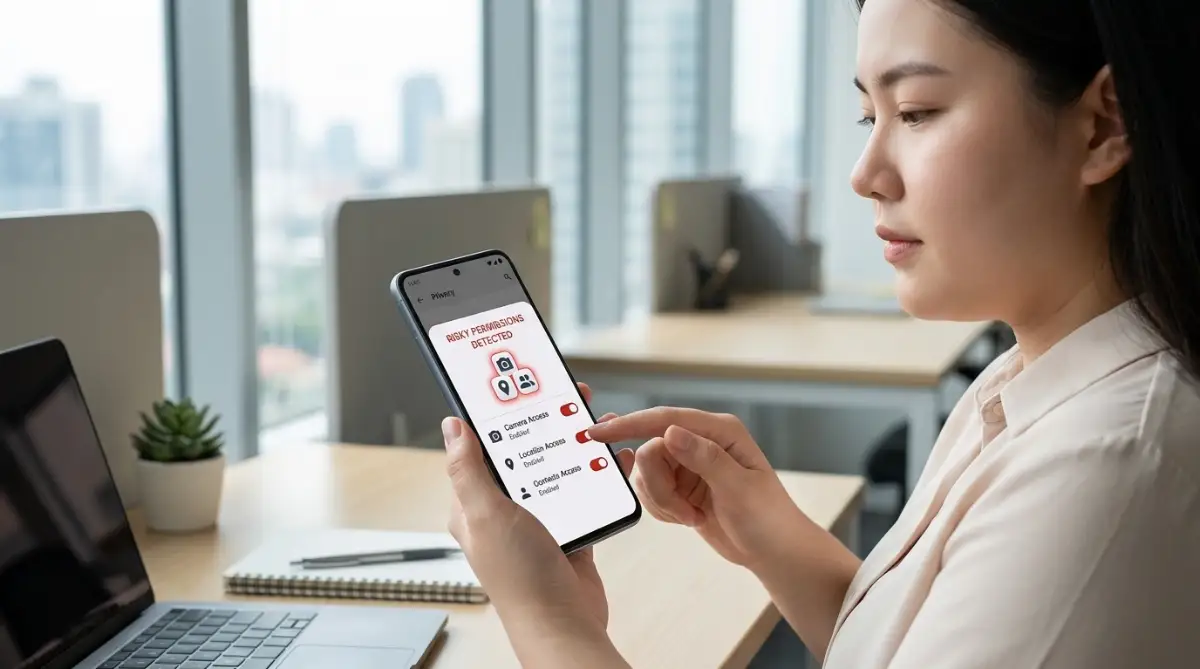
Dangerous Smartphone Traps That Leave Your Data Exposed
Securing your mobile environment is just as much about changing daily habits as it is about toggling software switches. Many smart users still fall into dangerous traps simply because they want convenience or fast results.
When you are in a hurry to open a file or play a new game, it is easy to make quick decisions that weaken your digital defenses.
Let us look at the most common blunders phone owners make so you can avoid these costly security pitfalls.
The Myth of "Booster" and Clean-up Applications
We have all seen full-screen pop-up ads claiming our phone is infected, running slow, or running out of storage space. These ads usually push free "memory cleaner" or "battery saver" utilities that promise instant performance improvements.
In reality, these utility tools are often thinly disguised data collection engines. They request full file access, location tracking, and device administration rights under the excuse of "optimizing" your system.
Once installed, they constantly display heavy banner ads and track your web activity while offering zero real speed benefits to modern smartphone hardware.
In fact, managing hidden mobile storage hoggers requires careful manual review, much like managing hidden background processes to fix system lag on a slow personal computer.
Sideloading Modded APK Files from Unverified Websites
Downloading modified applications from third-party forums or file-sharing sites is another massive security risk. These "modded" files often promise unlocked premium features or free game currency that normally costs money.
However, modified installer files are frequently modified by unknown coders who embed silent spyware inside the installation package.
When you install a modified file, you bypass all built-in app store security checks. The application gets direct access to your phone storage and can log personal information without triggering standard security alerts.
According to published CISA mobile device security guidelines, unverified third-party app stores remain one of the primary delivery methods for aggressive mobile malware across all platforms.
Ignoring Monthly System Security Updates
Phone manufacturers regularly release software patches that fix newly discovered security vulnerabilities in mobile operating systems.
When you delay or ignore these system updates, known security flaws remain completely open on your physical device.
Malicious software can exploit these unpatched system bugs to grant itself high-level permissions without ever asking for your user approval.
Make it a personal rule to install software updates as soon as they become available on your device.
+-------------------------------------------------------------------+ | DO'S AND DON'TS FOR MOBILE SAFETY | +-------------------------------------------------------------------+ | DO: Use built-in system permission dashboards once a month. | | DO: Set location rights to "Only while using the app". | | DON'T: Install modified APK files from file-hosting forums. | | DON'T: Trust third-party battery optimizer or booster apps. | +-------------------------------------------------------------------+
Real-Life Scenario: The Danger of Impatience
Imagine Sarah, a college student who needed to extract a compressed archive file on her phone to review her class notes before an exam.
She searched online, downloaded a free utility app from an unverified website, and tapped "Allow All" on every single popup to open her notes quickly.
The application successfully unzipped her file, but it also silently requested full access to her text messages and contact storage in the background.
A week later, scammers used her compromised phone details to send spam messages containing her contact list to fake payment portals.
Sarah lost hours dealing with angry friends and changing online passwords simply because she rushed through a few security prompts.
Your Daily Mobile Privacy Blueprint
Protecting your digital footprint does not mean you have to live in fear or stop downloading new tools. Mobile technology is meant to make our lives easier, more productive, and fun.
By building simple digital safety habits today, you can enjoy all the benefits of modern mobile applications while keeping your sensitive personal files completely secure.
The 5-Minute Weekend Privacy Check
You do not need to spend hours configuring complex settings every day. Set a small reminder on your calendar to run through this fast, five-minute security check once every week:
- Review Recent Downloads: Scan your app drawer and delete any game or utility tool you have not opened in the last seven days.
- Check Active Indicators: Notice if your camera or microphone indicator light turns on when you are simply reading text or scrolling news.
- Inspect Location Permissions: Make sure no basic offline tool has continuous background access to your precise GPS location.
- Clean Out Download Folders: Delete old installer files and sensitive PDF documents stored in your local download folder.
Building Digital Insurance for Your Personal Identity
Taking preventive steps with your technology is very similar to securing your physical property against unexpected accidents.
Just as homeowners take time understanding why claims get denied and staying protected before bad weather hits, mobile phone users must protect their digital identity before a privacy breach occurs.
If you are interested in using smart digital tools to organize your tech research, you can also explore fine-tuning AI output quality with proven frameworks to build better automated security prompts for your daily workflow.
Your personal identity, private financial data, and personal memories deserve the highest level of protection. Take control of your mobile permission settings right now, keep your software updated, and surf the mobile web with complete confidence!
Disclaimer & Policy Compliance Notice:
General Educational Disclaimer: The information provided in this guide is intended solely for educational, informational, and privacy-awareness purposes. While we strive to present accurate and updated security techniques, operating system settings and software interfaces may vary depending on your specific mobile device manufacturer, software version, and geographic region.
AdSense & Content Policy Compliance: This article does not encourage, promote, or provide instructions for unauthorized hacking, software piracy, or bypassing legal digital rights management. All security recommendations involve standard, built-in features provided officially by mobile operating system developers.
Social Media & Third-Party Disclosure: This content is for educational purposes only and complies with Pinterest, Facebook, and Google community guidelines. It contains no affiliate links, sponsored content, or commercial promotions.