The Hidden Danger Lurking in Your Browser
Your browser extensions might be doing more than just helping you shop or read—they could be recording every single keystroke you make. We install these tools for convenience, but often, we’re handing over the keys to our digital lives without even realizing it. It’s time to stop the blind trust and start securing your browsing experience. Let’s audit what’s really running behind the scenes.
We often think that because an extension is in the official store, it must be safe. That is a dangerous assumption to make. Thousands of people download these tools daily without a second thought, and most never check what permissions they are granting. When you give an extension "read and change all your data on the websites you visit" access, you are essentially giving a stranger the keys to your house.
The Browser Security Checklist
Don't have time to read everything? Fix your security in 5 minutes:
- The Monthly Cleanout: Delete any extension you haven't used in 14 days.
- Limit Access: Go to 'Site Access' and set your extensions to 'On click' mode.
- Don't Auto-Trust: Official store listings do not mean 100% safety; always check the developer.
- Use Profiles: Separate your banking and sensitive work into a clean, extension-free browser profile.
Rethinking How You Manage Your Browser Tools
To fix this, we need to change how we look at our browser setup. It is time to treat every extension like a house guest. You wouldn't let a stranger roam through your private files, so why do you let an unknown piece of software do it?

Audit Your Current Extension Library
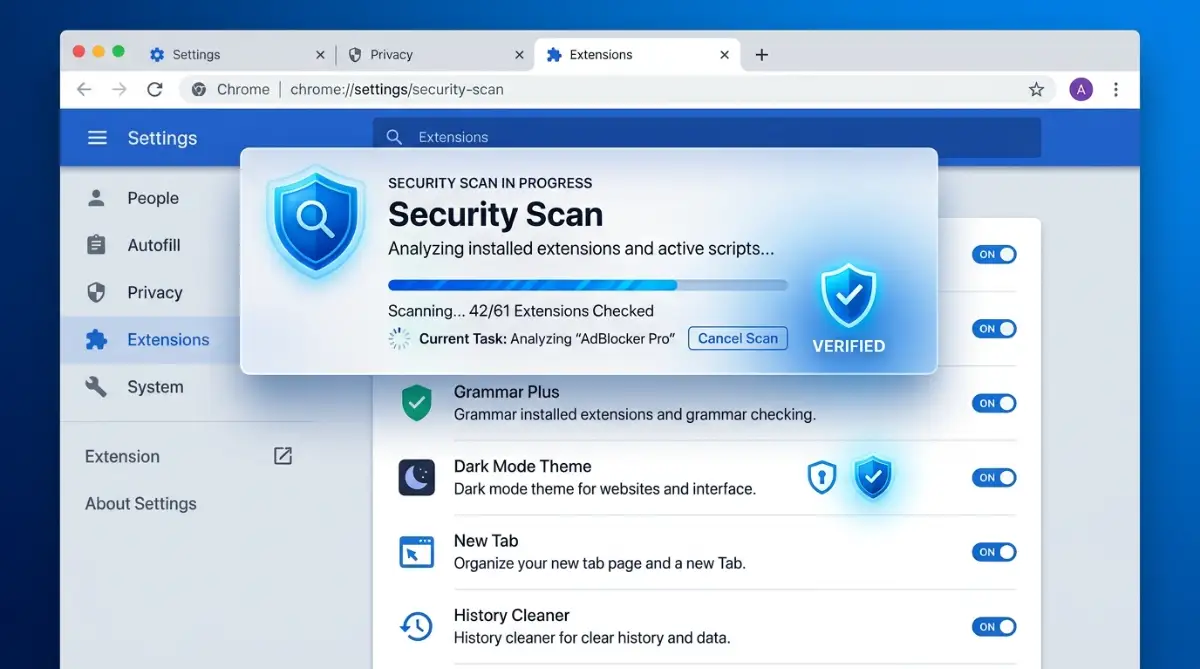
The first step is a clean sweep. Open your Chrome browser and go to your extensions page. Look at every single item you have installed. If you haven't used an extension in the last two weeks, delete it immediately. Less clutter means fewer chances for something to go wrong.
Tighten Your Permission Settings
Not every extension needs full access to your data. Check the permissions of the ones you absolutely must keep. You can often restrict an extension so it only works when you click its icon. This is a massive win for your privacy. Go to your extensions list, click on details, and look for "Site access." Set it to "On click" whenever possible.
Verify the Source and Reputation
Before installing a Chrome extension, it is worth taking a minute to find out who made it. The name of the developer can tell you quite a bit. If it is a company you recognize, you can usually find more information about it. If you have never heard of the developer, do not assume the extension is dangerous—but do not blindly trust it either.
Reviews are another useful place to look. The overall star rating does not tell the whole story. Open a few recent reviews, especially the negative ones. People often mention problems there that you will not notice from the extension's description, such as excessive ads, browser slowdowns, strange behavior, or new permissions appearing after an update.
Updates deserve some attention too. An extension that worked perfectly when you installed it can change later if the developer adds new features, changes ownership, or introduces new permissions. Before approving an update that asks for access to something new, stop and ask yourself whether the extension really needs that access.
It takes only a few minutes to check these things, but those few minutes can prevent a lot of frustration later. A browser extension may look harmless because it is sitting in the Chrome Web Store, but it still has access to parts of your browsing environment. It makes sense to know what you are giving it permission to do before you click “Add to Chrome.”
Watch Out for Red Flags

The "Permission Check" Decision Tree:
Before you click "Keep" on an extension, ask yourself these 3 questions:
- Does it need this? (A calculator doesn't need your browsing history).
- Who made it? (Check the developer's website—if it doesn't exist, remove it).
- Is it updated? (If the last update was 2+ years ago, it's a security risk).
If an extension asks for access to your clipboard, your history, or your bookmarks, ask yourself why. A simple "font switcher" tool has no reason to know your browsing history. If the permissions don't make sense for what the tool is supposed to do, walk away.
Learn to spot the signs of a bad actor:
- It asks for permissions that don't match its function.
- The developer is impossible to reach.
- The extension was recently "updated" to add new, strange features.
- Your browser starts acting sluggish or redirects you to search pages you don't recognize.
Understanding the Technical Side
You might think that browser extensions are just harmless code. In reality, they run within your browser's environment, meaning they can see almost everything you see. When you type into a search bar, that extension can potentially capture your keystrokes.
This is why "On Click" access is your best friend. It forces the extension to ask for your permission every single time you want to use it. It adds a small extra step to your workflow, but the peace of mind is well worth it.
Why Browser Hygiene Matters
Think of your browser as your digital office. If you leave drawers open, files scattered on the floor, and a lock broken on the door, someone is eventually going to walk in. Digital hygiene is about closing those drawers and fixing those locks.
If you have kids or share your computer with family members, this is even more important. A compromised extension could expose their data along with yours. By maintaining a clean browser, you create a safer environment for everyone in your home.
How to Stay Ahead of Threats
The tech world changes fast. New threats pop up, and developers are always finding new ways to trick us. You don't need to be a computer scientist to stay safe. You just need to be observant.
Keep these habits in mind:
- Don't keep too many extensions; they make your browser slower anyway.
- Use a password manager instead of saving passwords in your browser or letting extensions access them.
- Clear your cache and cookies regularly to get rid of leftover trackers.
If you are interested in seeing these steps in action, check out this guide on setting up your browser for maximum security. Watching a visual walkthrough can make all the difference in how you manage your settings.
The following video shows you exactly how to audit your permissions and keep your data locked down:
Building a Long-Term Privacy Habit
It's easy to choose convenience when you're in a hurry, especially when a browser extension or online tool seems useful. But it's worth taking a few minutes to check what you've installed and what access you've given it.
You don't have to change everything at once. Start by removing extensions or tools you no longer use, review their permissions, and keep access limited to what is actually necessary. Making these checks a regular habit can help you maintain better control over your personal information as you use the internet.
Elevating Your Browser Security: Expert-Level Strategies
Maintaining a secure browser is about building habits that work behind the scenes. Once you have cleared out the unnecessary extensions, you need to implement layered defenses. The goal is to make it harder for any rogue software to scrape your sensitive data without you knowing.
Leveraging Built-in Browser Protections
Most users never open their advanced browser settings. Start by checking your Privacy and Security configuration. Ensure that "Enhanced Protection" is toggled on. This allows the browser to predict and warn you about dangerous sites and extensions in real time.
The Power of Isolated Browsing
If you handle banking or highly sensitive work, I recommend using a separate browser profile. You can keep your "risky" extensions on one profile and keep your banking profile completely clean. This digital fortress approach creates a physical separation between your daily tasks and your financial life.
Regular Permission Audits
Do not assume that an extension’s permissions remain static. Sometimes, an auto-update grants an extension access to your clipboard or history without a prompt. I make it a habit to audit my installed list once a month. If I notice an extension trying to run background processes, I immediately manage hidden background processes to see if it is eating up my system resources while spying on me.
Use Official Sources Only
Never download an extension from a third-party website. Even if a site claims to offer a "modded" or "ad-free" version of a tool, it is almost certainly a trap. Always stick to the official Chrome Web Store. For deeper insights into how your data might be exposed by insecure tools, you can refer to the privacy guidelines published by the FTC.

Common Mistakes That Leave Your Data Exposed
Many people fall into the trap of convenience, thinking that saving a few seconds is worth the risk. One of the biggest mistakes is granting "Full Access" to every tool you install. You might think, "It’s just a grammar checker, what could it do?" The reality is that if the tool has access to your text, it can potentially see everything you type, including passwords and sensitive account numbers.
Another frequent oversight is ignoring the developer’s history. You might download an extension that has five stars, but if the developer has no website, no contact info, and only released the tool last week, you are taking a massive risk. These "fly-by-night" developers often build tools just to harvest data for a few months before disappearing.
People also fail to build a fail-safe emergency fund for their digital identity. If you lose control of your accounts, the financial fallout can be severe. Just like you protect your physical assets, you must treat your digital data with the same level of care. Ignoring these small warnings often leads to a much larger problem down the road, such as identity theft or unauthorized account access.
Taking Control of Your Digital Experience
By now, you have a solid plan to keep your browser clean and your data private. Remember that this is a continuous process of staying curious and cautious. Every time you consider installing a new tool, ask yourself if the benefit truly outweighs the access you are giving away.
If you ever feel like your digital life is becoming too complex, remember to simplify. You can fine-tune your digital workflows to get the same results with fewer tools. I have found that a minimalist approach to browser extensions is the best way to stay secure and productive.
My journey toward better digital privacy taught me that being proactive is much easier than fixing a security breach. Take one small step today, like removing that one extension you don't recognize, and you will already be ahead of the curve. Your data is yours to protect, so keep it close and keep it safe.
Questions People Frequently Ask About Extension Safety
How can I tell if an extension is stealing my data?
Watch for unusual browser behavior, such as slow performance, unexpected pop-ups, or search results being redirected. You can also monitor your network traffic if you are tech-savvy, but usually, a suspicious surge in background data usage is a major red flag.
Is it safe to use password managers as extensions?
Yes, but only if they come from reputable, well-known security companies. Always verify the developer's name and read recent security audits for that specific product before giving it access to your vault.
What should I do if I suspect an extension is malicious?
Remove it immediately from your browser settings. Afterward, clear your browser cache, run a reputable antivirus scan, and consider changing your passwords for any sensitive sites you visited while that extension was active.
Do ad-blockers count as risky extensions?
Most well-known ad-blockers are safe, but they require deep access to your browsing data to function. Choose open-source, highly-rated options and avoid obscure tools that promise "extra features" beyond simple ad blocking.
Disclaimer: This article is for informational purposes only and does not constitute professional cybersecurity or legal advice. While I share tips based on personal experience, I am not responsible for any security breaches or data loss that may occur. Always conduct your own research before installing software on your devices.