When Your Digital Life Refuses to Align
There is nothing more infuriating than spending your commute drafting important tasks on your phone, only to sit at your desk and find a blank screen. You trusted the app to sync, but the data simply vanished into the void. It’s not just a glitch; it’s a massive hit to your productivity. Let’s stop letting bad syncs dictate your focus and get your workflow back on track.
When you're using the right tools but your notes or tasks still don't sync properly, it can be surprisingly frustrating. You rely on these apps to keep your information available across your devices, so even a small sync problem can interrupt your routine.
It can also leave you wondering whether you did something wrong or whether your internet connection is causing the problem. In many cases, the cause is something much simpler, such as a restricted background setting, an outdated app, or a temporary connection issue.
The good news is that these problems are often fixable. Instead of repeatedly checking whether your work was saved, it's better to identify what is stopping the sync and address the underlying setting. Once you understand the common causes, troubleshooting becomes much less stressful.
Quick Summary: How to Fix Sync Issues
- Check the Basics: Verify that you are logged into the exact same email/account on both devices.
- Background Data: Ensure your phone isn't "battery-saving" your app to death.
- Manual Refresh: Don't wait for auto-sync; force a refresh after major edits.
- Avoid Conflicts: Finish your work on one device, wait for the 'Saved' icon, then open the other.
Uncovering the Root of Data Disconnects
The 30-Second Sync Diagnostic:
Ask yourself these three questions to find the culprit:
- Is the account the same? (Are you logged into your Work email on the laptop and Personal on the phone?)
- Is the connection active? (Are you on a restricted public Wi-Fi or behind a corporate firewall?)
- Is the app active? (Did you close the app before the little 'loading' icon finished spinning?)
When synchronization fails, it usually points to a few specific areas in your app settings or network environment. You do not need to be a software engineer to figure this out. Most sync errors happen because of simple background restrictions or cache issues. Let’s look at how to get your devices back in sync.
Checking Your Cloud Account Status
Quick-Fix Table for Sync Errors:
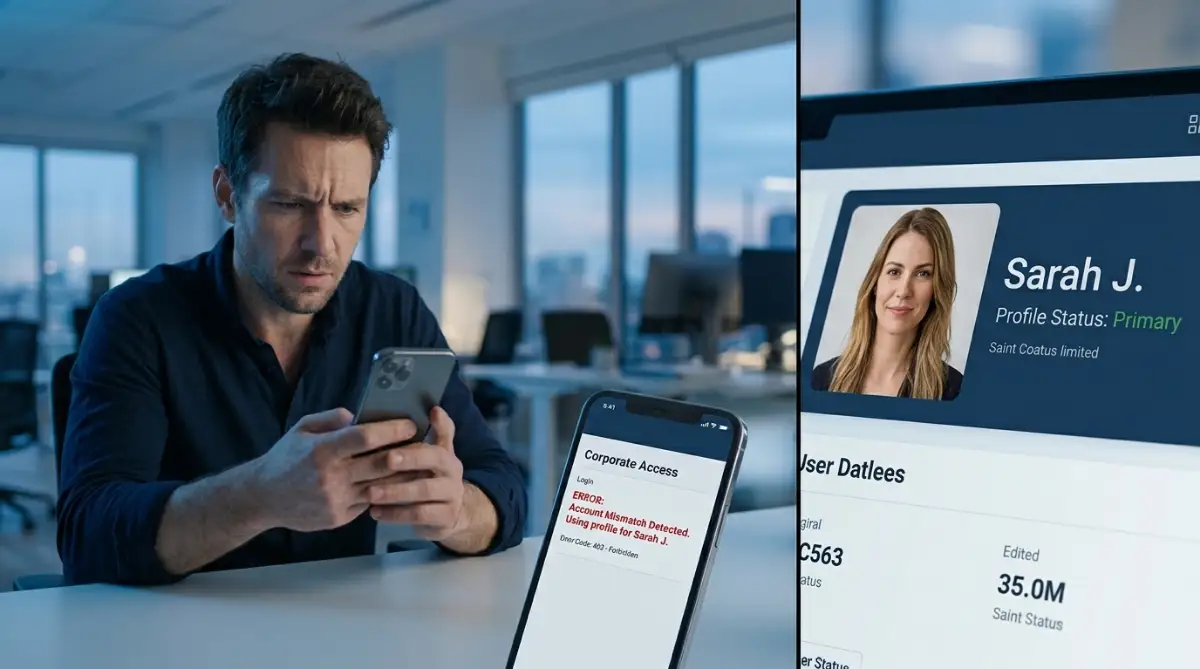
The most common reason for a disconnect is a simple login mismatch. I have often realized that I was signed into a different email address on my phone than the one I used on my computer. I once spent an entire morning trying to find a file, only to realize I was using my personal account on one device and my work account on the other. It was a classic mistake, but it taught me to always check the account settings first.
- Verify your login details on both devices.
- Log out and log back in to refresh the connection token.
- Ensure both devices are using the exact same account profile.
Managing Background Data Permissions
Modern smartphones are designed to save your battery, which often means they stop apps from updating in the background. If your app cannot talk to the server while you are not using it, it will never sync your changes. You need to manually tell your phone that this app is allowed to work in the background.
- Go to your phone’s Settings menu.
- Find the Battery or Data Usage section.
- Ensure that "Background Data" is enabled for your specific productivity app.
Clearing the App Cache
Sometimes, your app stores "ghost" data that confuses the sync process. This is like a traffic jam in your app’s memory. By clearing the cache, you give the app a fresh start to reach out to the server and pull down your latest information. Do not worry; this usually does not delete your actual data, just the temporary files.
- Look for the Storage section in your app settings.
- Select Clear Cache.
- Restart the app immediately after this process.
The Power of a Manual Sync Trigger
Many apps have a "Pull to Refresh" feature that we often ignore. If a background sync fails, a manual trigger forces the app to reach out to the cloud right now. This is a simple but effective way to force an update when you notice things are out of sync.
Pro Tip: I once thought my sync was broken because I was staring at the screen waiting for an auto-update. My realization was that I needed to manually hit the refresh button after every major edit to ensure the server received my changes immediately. It saved me hours of stress later on.
Why Your Connection Might Be Playing Tricks
Sometimes the problem is not the app, but how your device perceives the network. If you are switching between Wi-Fi and mobile data, the app might get confused about which connection is stable.
Network Stability Considerations
Moving between your home, office, and other locations means your phone may switch between different Wi-Fi or mobile networks. During that change, a sync process can sometimes pause or fail.
If a sync doesn't complete, check your connection before changing other settings. Try again when you're connected to a stable Wi-Fi network, especially when you're syncing large files. It's also better to avoid transferring sensitive or large amounts of data over unreliable public networks.
Syncing Large File Attachments
If you are attaching heavy files like PDFs or images, the sync process takes much longer. If you close the app before the upload bar finishes, the sync will likely fail. Always watch for the "Sync Complete" indicator before you put your device away.
Check this out to see a live demonstration of how to configure your sync settings for optimal performance:
If you are tired of losing your data during transit, this video will show you the exact settings to change to ensure your devices stay perfectly aligned.
The Role of App Updates
Developers are constantly fixing bugs that cause these exact problems. If you are using an older version of the app, it might be incompatible with the latest server updates. Always keep your apps updated to the latest version available in your app store.
- Check your App Store or Play Store regularly.
- Enable Auto-Update to ensure you never miss a fix.
- If an update is available, download it as soon as you notice sync instability.
When to Contact Support
If you have tried all these steps and the issue persists, the problem might be on the developer's side. Do not hesitate to use the "Help" or "Contact Us" feature inside the app. Provide them with your device model and the version of the app you are using. They often have specific workarounds for your situation.
Mastering Data Synchronization Like a Pro
To keep your digital world perfectly synced, you need to think beyond basic settings. True mastery comes from understanding how your devices prioritize traffic and memory. I have found that a little bit of manual intervention often clears up problems that automated systems simply cannot resolve on their own.
Optimize Your Sync Frequency Settings
Most productivity applications allow you to choose how often they check for updates. If you have this set to "Manual," your phone will never update unless you open the app. I recommend setting this to "Automatic" or "Push," which allows the server to send updates to your phone the moment a change is made.
When you notice your phone is heating up or battery is draining too fast, the app might be stuck in a sync loop. You can speed up your phone by checking if your system is throttling background processes. Be mindful that managing hidden background processes is a smart way to ensure your essential apps get the priority they need.
The Protocol of Cross-Device Hygiene
Never edit the same document on two devices simultaneously. Even with modern cloud technology, this creates a "conflict," where the app does not know which version to keep. Always finish your task on one device, wait a few seconds for the status to show "Saved," and then open it on the other.
If you are new to the world of automation, you might want to bridge the professional skill gap by learning how these small data triggers work. This habit prevents data loss and reduces the need for constant troubleshooting. It is all about giving the server enough time to process your input before moving to the next task.
Why Version Control Matters
Always keep a backup of your most important data outside of the sync app. You can do this by exporting your notes or task lists to a simple text file every few weeks. Even if a sync error happens, you will never lose your valuable research data or meeting notes.

Pitfalls That Trigger Sync Failure
People often make the mistake of ignoring warning icons within their apps. That small yellow exclamation mark is not just a decoration; it is a cry for help. If you keep ignoring it, the app eventually stops trying to sync altogether to save your battery.
Another common blunder is using public Wi-Fi without a secure tunnel. Some public networks block the specific ports that productivity apps use to talk to their servers. When this happens, you get a "Connection Error," but it is actually a network restriction. If you find your apps behaving strangely, stop granting unnecessary permissions to random tools that might be interfering with your system's core network settings.
Do not assume that "Offline Mode" is a permanent solution. While it is great for working on a plane, leaving an app in offline mode for days is a recipe for disaster. When you finally go back online, the app may struggle to merge your weeks of offline work with the cloud's current state. Always try to sync at least once every twenty-four hours.
Your Path to Seamless Device Harmony
Keeping your devices in sync doesn't have to be frustrating. A few simple habits can prevent many common problems: keep your apps updated, check the permissions and battery settings when something stops syncing, and make sure your internet connection is reliable.
You don't need to fix everything at once. When a sync problem appears, start with the basics and work through the settings one at a time. In many cases, the issue is caused by a small setting that was changed or restricted without you noticing.
Once you understand how your apps and devices handle synchronization, these problems become much easier to troubleshoot. The goal isn't to create a perfect setup—it's to have a system that works reliably for the way you actually use your devices.
Your Questions Answered
Why do my changes disappear when I switch devices?
This usually happens because the first device did not finish its upload before you closed the app. Always check for a "Sync Complete" status or a cloud icon before you exit.
Does a slow internet connection break my synchronization?
Yes, a weak signal can cause the upload to time out. If your internet is shaky, wait until you are back on a stable network to sync your important updates.
Is it safer to keep data on my local device instead of the cloud?
Local storage is great, but it lacks the benefit of syncing across devices. If you want the best of both, keep your main data in the cloud and use a reliable file management protocol to keep local copies.
Should I reinstall my app if it still won't sync?
Reinstalling is a good "nuclear option" if nothing else works. It clears all problematic local files and gives the app a clean slate to pull your data from the server.
Disclaimer: This content is provided for informational purposes only. While I strive to provide accurate troubleshooting tips, I am not responsible for any data loss that may occur while modifying app settings or device configurations. Always perform a manual backup of your data before attempting advanced fixes.